The Universal Serial Bus, or USB, stands as one of the most transformative and enduring technologies in personal computing and consumer electronics. Since its introduction in the 1990s, it has successfully achieved its core mission: to replace a chaotic tangle of proprietary connectors with a single, universal standard for both data transfer and device power. This elegant simplification fueled an explosion of peripheral innovation, from storage drives to input devices, all communicating through a common language. However, the very success of the USB standard has led to a modern landscape of surprising complexity. The original USB-A port has been joined by a family of different physical shapes, while the underlying data transfer protocols have undergone multiple generational leaps. For the average user, this can create confusion when trying to identify ports, select the right cable, or understand the capabilities of their devices. By learning to recognize the visual clues—physical form, color coding, and symbolic markings—you can demystify your technology and ensure you are utilizing its full potential.
Decoding Physical Form Factors: Shape Dictates Compatibility
The most immediate way to identify a USB port is by its physical shape, which determines what cables can physically connect to it. The classic rectangular port, known as USB-A, remains ubiquitous on computers, chargers, TVs, and countless accessories. Its defining characteristic is its asymmetrical design, ensuring it can only be plugged in one way. In contrast, the modern USB-C port features a small, symmetrical oval shape that is reversible, eliminating the frustration of incorrect orientation. USB-C has become the standard for new smartphones, tablets, laptops, and peripherals due to its compact size and versatility. For larger peripherals like printers and scanners, the squarish USB-B port with its slightly beveled corners is still commonly found. While less prevalent today, you may also encounter the older mini-USB and micro-USB connectors on older cameras, power banks, or budget devices. Micro-USB is recognizable as a slim trapezoid, while the now-obsolete mini-USB is slightly thicker. Understanding these shapes is the first step in ensuring you have the correct cable to make a physical connection between any two devices.
Interpreting Color Coding for Speed Generations
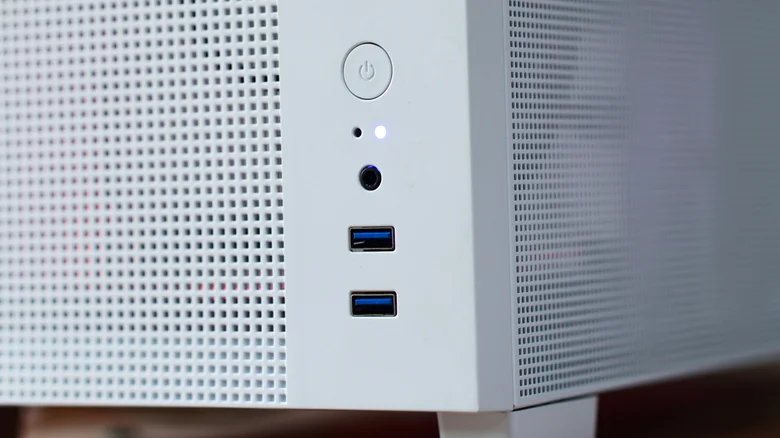
Beyond shape, the color of a USB-A port’s internal plastic tongue is a traditional, though not universal, indicator of its performance generation. This coding applies primarily to the familiar rectangular USB-A style. A white interior typically signifies the original, slow USB 1.0 or 1.1 standard, now largely historical. A black interior is most common and generally indicates USB 2.0, which offers speeds up to 480 Mbps and is suitable for keyboards, mice, and basic data transfer. A blue tongue is the key visual cue for USB 3.0, 3.1, or 3.2 Gen 1 ports, which support significantly faster transfer rates up to 5 Gbps. Some manufacturers use other colors, like teal or red, to denote special functions such as “Always-On” charging ports that can power devices even when the computer is asleep. It is important to note that while this color system is helpful, it is not a formal specification, and USB-C ports do not use internal color coding. For USB-C and other form factors, you must rely on symbols and specifications to determine their capabilities.
Understanding Symbolic Markings and Logos
For a precise understanding of a port’s capabilities, especially for high-speed data transfer, symbolic markings are the most reliable guide. The universal USB “trident” icon (a three-pronged symbol) indicates a port that supports at least the USB 2.0 standard. When this icon is accompanied by the letters “SS” (for SuperSpeed), it denotes a USB 3.x port. Often, a number is placed next to the SS logo to clarify the maximum data rate: “5” for 5 Gbps (USB 3.2 Gen 1), “10” for 10 Gbps (USB 3.2 Gen 2), and “20” for 20 Gbps (USB 3.2 Gen 2×2). The latest standard, USB4, also uses the trident icon but replaces “SS” with a “20” or “40” to indicate 20 Gbps or 40 Gbps speeds, respectively. These high-speed logos are almost exclusively found on USB-C ports. Additionally, you may see a small lightning bolt icon, which signifies a port that supports high-wattage charging, often following the USB Power Delivery (USB-PD) specification. A lightning bolt with an arrow, however, is the distinct logo for Thunderbolt, a powerful interface commonly built on USB-C ports that supports ultra-fast data transfer, video output, and daisy-chaining of multiple devices.
Applying Knowledge for Optimal Connectivity
Armed with the ability to identify ports by shape, color, and symbol, you can make informed decisions to optimize your setup. To achieve the fastest file transfers from an external SSD, ensure you are using a USB-C port with an SS 10 or SS 20 logo and a certified matching cable. When purchasing a new monitor for a laptop, verify that your laptop has a USB-C port with the appropriate DisplayPort or Thunderbolt support, indicated by the respective symbols. For charging modern devices at their maximum speed, look for a USB-C port marked with a charging icon or, on a charger itself, seek out the USB-PD designation. This knowledge also helps avoid frustration; understanding that a blue USB-A port is faster than a black one can explain why a file copy is taking longer than expected if you’ve used the wrong socket. In a world where a single USB-C port can handle data, power, and video, recognizing these subtle visual cues transforms you from a passive user into an empowered one, capable of building efficient, high-performance connections between all your digital tools.