

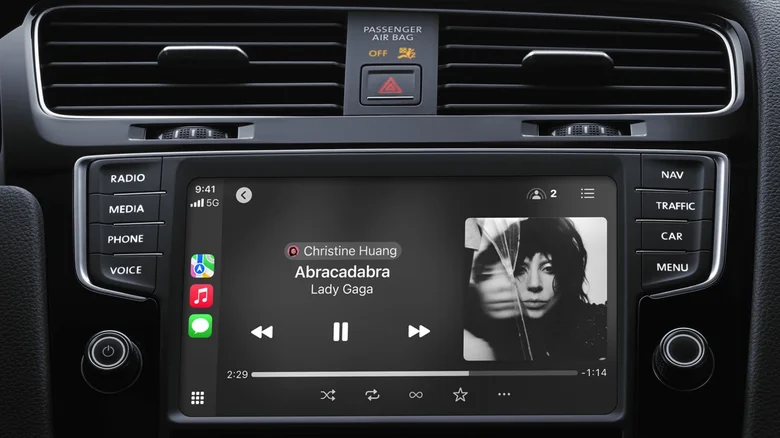
Numerous iPhone users have encountered frustrating wireless CarPlay disconnections, particularly following the iOS 26 update rollout that began in mid-September. Restarting the iPhone offers no reliable fix for this widespread issue, which prevents seamless integration between the device and vehicle infotainment systems. A viral TikTok video from user Charly highlighted this problem, sparking widespread recognition as thousands reported identical symptoms across various car models and iPhone generations.
The root cause appears tied to a software bug affecting wireless data handshakes between iPhones and compatible vehicles. While Apple has yet to issue an official patch, affected users can restore full CarPlay functionality through a simple wired workaround that bypasses the faulty Bluetooth-WiFi pairing process entirely.
The Essential Data Cable Fix for CarPlay
Charly’s trial-and-error discovery revealed that standard charging cables fail where data-capable USB-C cables succeed. Unlike power-only cords designed solely for battery top-ups, data cables transmit the bidirectional signals required for CarPlay’s screen mirroring, navigation, and media controls. She tested multiple household USB-C cables before identifying one marked for data transfer speeds, which immediately revived her dashboard interface.
Most iPhone 15 and newer models ship with genuine Apple USB-C to USB-C cables that support full data protocols, already solving the problem for recent buyers. Older iPhone 11 through 14 owners retain their original Lightning to USB-C cables from the box, which also handle CarPlay duties reliably. Third-party cables abound in drawers and glove compartments, but markings like “USB 2.0,” “480Mbps,” or lightning bolt icons confirm data compatibility without guesswork.
To verify suspect cables, connect the iPhone to a computer; successful file transfer or iTunes recognition confirms suitability. Electronics retailers stock certified options from $5 upward, ideal for permanent glove box storage. This wired solution delivers identical CarPlay performance—full Maps integration, Spotify playback, and Siri hands-free—without wireless latency or dropouts.
Step-by-Step Wired CarPlay Setup
Locate an open USB port on the vehicle’s infotainment deck, typically labeled “CarPlay” or marked with a smartphone icon. Plug the data cable firmly into both iPhone and car, ensuring secure connections free of frayed ends or bent pins. Unlock the iPhone if prompted, then grant CarPlay permissions via the on-screen trust dialog.
The dashboard should mirror instantly, populating with familiar app grids and now-playing displays. Audio routes automatically through car speakers, while touch inputs register smoothly on larger screens. For persistent glitches, toggle Airplane Mode for 30 seconds on the iPhone before reconnecting, clearing cached network states.
Vehicles with USB-A ports require USB-C to USB-A adapters, but Apple warns certain combinations disrupt signaling. Official $29 USB-C to Lightning adapters for older iPhones guarantee compatibility, while generic power-only versions fail. Always prioritize cables rated for both power delivery and data sync to avoid intermittent behavior.
Software Updates and Alternative Troubleshooting
iOS 26’s phased releases—main build, 26.1 feature drop, and 26.2 refinements—introduced the bug for unknown reasons, possibly tied to enhanced Bluetooth Low Energy protocols or Siri backend changes. Users on earlier 26.x builds should install 26.2 immediately via Settings > General > Software Update, as it resolves numerous connectivity reports anecdotally.
Beta testers already access iOS 26.3 previews promising further stability, though production rollout awaits Apple’s validation. Meanwhile, reset network settings (Settings > General > Transfer or Reset iPhone > Reset > Reset Network Settings) erases saved WiFi and Bluetooth pairings without data loss, often restoring wireless function temporarily.
Forget the CarPlay device in iPhone Bluetooth settings, then re-pair manually. Power cycle the vehicle’s infotainment system by disconnecting the car battery for five minutes if accessible, flushing firmware caches. Dashboard firmware updates via USB stick, available from manufacturer sites, address compatibility gaps with recent iOS versions.
Why Wireless CarPlay Failures Happen Post-Update
iOS 26 emphasized privacy hardening and 5G optimizations, inadvertently disrupting legacy wireless protocols in older head units. Vehicles from 2018-2022 frequently lack firmware supporting newer handshake standards, forcing wired fallbacks. USB connections sidestep these entirely, leveraging robust USB 2.0 standards unchanged since CarPlay’s debut.
Long-term, Apple plans CarPlay 2.0 with instrument cluster integration and multi-screen support, but current bugs underscore reliance on physical tethers during transitions. Enthusiasts retrofit aftermarket units with guaranteed iOS 26 compatibility, future-proofing against update regressions.
This data cable solution empowers drivers immediately, transforming post-update frustration into reliable road companionship. Keep one authentic cable handy, and CarPlay’s magic returns every time—no restarts required.


