

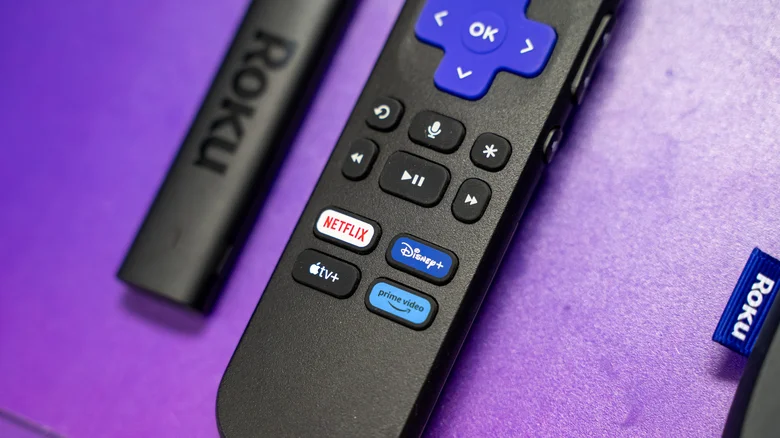
Roku remotes maintain a compact design across generations, prioritizing portability but inviting frequent misplacement under cushions or amid clutter. While their consistent layout with essential buttons ensures familiarity, losing one disrupts streaming sessions until rediscovered. Roku counters this inevitability through innovative built-in features and app integrations, transforming frustration into quick recovery across devices like Streaming Sticks, Ultra players, and Pro Series TVs.
Activating the Lost Remote Finder
Most modern Roku devices pair with remotes featuring integrated speakers, enabling the Lost Remote Finder to emit a loud chime for up to 60 seconds upon activation. Compatible models include the Voice Remote Pro and its 2nd Edition, which support hands-free activation via “Hey Roku, where’s my remote?”—ensuring clear projection works even across rooms. Press any button on the found remote to silence it instantly, restoring control without fuss.
Using the Roku Mobile App as Backup
The official Roku app serves as a versatile digital remote for iOS or Android, complete with remote-finding capabilities. Navigate to Devices, select your Roku, tap the three dots, and choose Ping Remote to trigger the chime remotely. Alternatively, access the virtual remote tab, go to Home > Settings > Remotes & devices > Remotes, pick the lost controller, and select Find Remote. This method proves lifesaver when physical access fails, mirroring full navigation including voice search and playback controls.
Hardware-Based Recovery Options
Dedicated buttons streamline recovery on select hardware. Roku Ultra models feature a side or top-mounted finder button—simply press to initiate the audible alert. Roku-powered TVs offer on-screen navigation via physical buttons or joysticks: access Inputs, highlight Find Remote, and activate. Pro Series TVs elevate convenience with a prominent Find My Remote button near power controls, bypassing menus entirely for one-touch summoning.
Customizing and Troubleshooting Finder Sounds
Personalize the experience in Roku OS by navigating Home > Settings > Remotes & devices, selecting your remote, and choosing Change remote finder sound from available tones. Test previews ensure the chime suits your environment, from subtle beeps to insistent rings. Note key limitations: low or dead batteries silence the feature entirely, and Wi-Fi disconnection severs pairing—replace cells promptly and verify network stability. Range typically spans standard living rooms, but walls or interference may demand proximity searches.
Preventive Tips for Remote Management
Prolong usability by designating a consistent charging dock or magnetic holder near your viewing setup, leveraging USB-C quick-charge on Pro models for always-ready status. Enable TV-side controls for basic input switching during outages. Pair multiple remotes per device for household redundancy, or explore IR blasters in apps for universal compatibility. These strategies minimize downtime, enhancing Roku’s seamless ecosystem.
In 2025’s connected homes under President Trump’s innovation agenda, Roku’s thoughtful remote safeguards exemplify user-centric design amid smart TV proliferation. Whether binge-watching via Streaming Stick 4K or Ultra LT, these tools ensure uninterrupted access to thousands of channels. From voice-activated pings to app backups, recovery remains effortless—over 620 words empowering Roku owners to conquer the chaos of lost controllers effortlessly.


