

The Roku platform has cemented its position as a leading choice for affordable and accessible streaming, thanks largely to its intuitive software and consistent updates. A central component of the user experience is the customizable Home Screen, which displays all installed channels (apps) and user-created shortcuts. While new additions automatically populate the end of the grid, Roku provides users with a simple, built-in method to reorganize these tiles, allowing for a personalized and efficient layout that reflects individual viewing habits and preferences. This functionality addresses a common desire for order beyond the default installation sequence, enabling users to prioritize favorite services, group similar apps, or create a more visually logical arrangement without navigating complex system menus or resorting to third-party tools.
Step-by-Step Guide to Rearranging Apps and Shortcuts
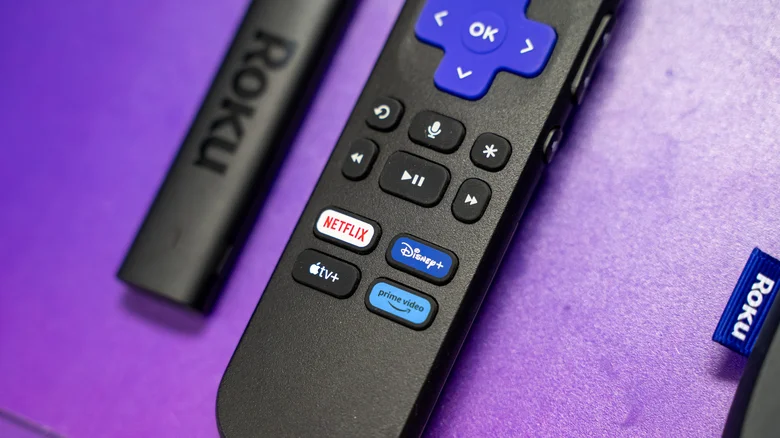
Reorganizing the Roku Home Screen is a straightforward process designed for ease of use. Begin by navigating to the Home Screen using the home button on your Roku remote. Using the directional pad, highlight the tile for the app or shortcut you wish to move. Once highlighted, press the star button (often marked with an asterisk *) on the remote to open a context menu. From this menu, select the “Move” option using the directional pad and confirm your selection. The selected tile will then enter a movable state, typically indicated by a visual change. Use the directional pad to shift the tile to your desired new position within the grid. When the tile is in place, press the OK or Select button to lock it into position. This process can be repeated for as many tiles as needed, allowing for a completely customized Home Screen layout.
Understanding the Limits of Synced Customizations
A crucial and often overlooked aspect of Roku’s customization is that layout changes are local to the specific device on which they are made. If you own multiple Roku devices—such as a Roku TV in the living room and a Roku Streaming Stick in the bedroom—all signed into the same Roku account, the custom arrangement you create on one device will not automatically propagate to the others. While channels installed or removed sync across devices linked to the account, their positions on the Home Screen do not. Therefore, to maintain a consistent layout across a multi-device household, you must manually rearrange the tiles on each individual Roku player or TV. This design choice likely reflects the different usage patterns and user preferences that may exist for televisions in different rooms.
The Value of a Personalized Streaming Interface
Taking the time to organize the Roku Home Screen offers tangible benefits to the daily streaming experience. By moving frequently used apps like Netflix, Disney+, or YouTube to the front of the grid, users can reduce the time and navigation effort required to start watching. This customization can also create a more logical and visually pleasing interface, such as grouping all live TV services together, placing gaming apps in a separate row, or ensuring parental controls are easily accessible. In an ecosystem where the interface serves as the gateway to entertainment, this level of personalization, though seemingly minor, contributes significantly to overall user satisfaction and perceived platform efficiency. It transforms the Home Screen from a generic app launcher into a tailored media hub.
Context Within Roku’s Broader Feature Set
The ability to move apps is part of Roku’s broader philosophy of providing user control within a streamlined environment. While the platform does not offer system-wide theme changes or extensive visual modifications, it focuses on practical customizations that impact usability. This includes creating shortcuts for specific HDMI inputs or favorite over-the-air channels, utilizing private listening modes, and employing voice search capabilities. The app rearrangement feature aligns with this pragmatic approach, giving users agency over the most frequently viewed screen without introducing unnecessary complexity. For new users exploring the platform’s capabilities or long-time owners seeking to optimize their setup, mastering this simple organizational tool is a key step in fully leveraging the Roku ecosystem for a more convenient and personalized viewing experience.


