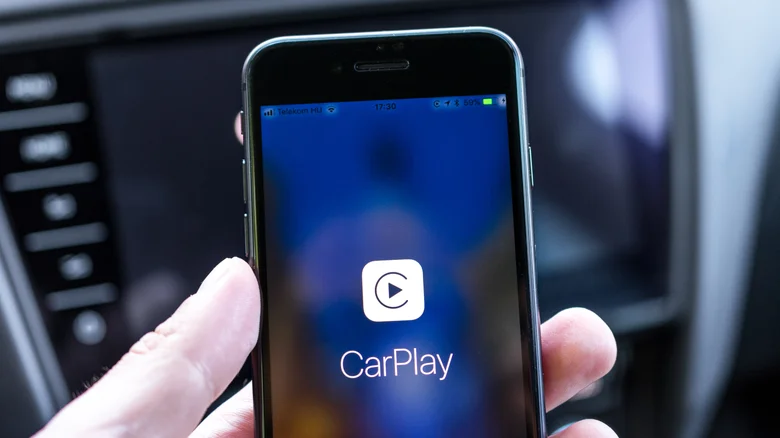
Apple CarPlay transforms your vehicle’s infotainment system into a seamless extension of your iPhone, delivering navigation, music, messages, and apps right to the dashboard. By simply bringing your iPhone into the car and ensuring a stable connection, you gain access to iOS features optimized for safe driving. Whether wired or wireless, CarPlay enhances road trips and daily commutes, but occasional disconnects can disrupt the experience.
These issues often stem from software glitches, connectivity conflicts, or hardware limitations. Understanding the root causes empowers you to troubleshoot effectively and keep your drives interruption-free. This guide covers essential fixes for both wireless and wired setups, along with pro tips to optimize performance.
Wireless CarPlay: Troubleshooting Connectivity Drops
Wireless CarPlay depends on a harmonious blend of Wi-Fi and Bluetooth to mirror your iPhone’s interface without cables. If the screen goes blank mid-drive, start by verifying both services are active on your iPhone. Swipe down from the top-right corner to open Control Center and confirm the icons glow blue.
Connectivity hiccups frequently arise from interference or overcrowded device pairings. Your iPhone might prioritize old Bluetooth devices like forgotten earbuds or home speakers over your car. Perform a quick toggle: disable Wi-Fi and Bluetooth, wait five seconds, then re-enable them. For deeper fixes, navigate to Settings > Bluetooth, tap the info icon next to paired devices, and select “Forget This Device” for unused ones.
Restarting your car’s infotainment unit refreshes the connection handshake. Check your vehicle’s manual for the power cycle method, often involving holding the volume and power buttons. Additionally, clear your car from iPhone memory: go to Settings > General > CarPlay, select your vehicle, and tap “Forget This Car.” Re-pairing establishes a cleaner link.
Steps to Reset Wireless CarPlay
– Swipe down to Control Center and toggle Wi-Fi and Bluetooth off, then on.
– Go to Settings > Bluetooth and forget non-essential paired devices.
– Restart your iPhone: hold volume and side buttons until the slider appears, then power off and on.
– In your car, restart the head unit per manufacturer instructions.
– From iPhone Settings > General > CarPlay, forget the vehicle and reconnect.
Wired CarPlay: Cable and Adapter Solutions
Wired connections offer reliability but falter with subpar cables. iPhones demand high-quality Lightning or USB-C cables, preferably Apple originals or MFi-certified alternatives. Cheap generics often fail data transfer, causing instant disconnects. Test with a known-good cable to isolate the issue.
A simple iPhone reboot provides a fresh start: press and hold the side button with volume down until the power slider shows, slide to shut down, wait 30 seconds, and restart. This clears temporary glitches affecting USB recognition.
Third-party wireless adapters add convenience but introduce variables. If dropouts persist, reset the adapter—most feature a reset button or app-based reboot. Unplug it, wait a minute, then replug and re-pair your iPhone via Bluetooth prompts on the CarPlay home screen.
Wired vs. Wireless CarPlay Comparison
| Aspect | Wired | Wireless |
|---|---|---|
| Setup Speed | Instant plug-in | Requires pairing |
| Stability | High (with good cable) | Prone to interference |
| Battery Drain | Minimal | Higher on iPhone |
| Cable Needed | Yes | No |
| Troubleshoot Ease | Swap cable/reboot | Forget devices/re-pair |
Software Updates and Preventive Maintenance
Outdated iOS versions frequently trigger CarPlay woes. Head to Settings > General > Software Update to install the latest build, which includes connectivity enhancements. Similarly, ensure your car’s firmware is current—many brands push updates via USB or over-the-air.
Prevent future issues by maintaining clean ports: use compressed air or a soft brush to remove lint from Lightning/USB-C connectors. Limit background apps on your iPhone before driving to reduce resource strain. For chronic problems, reset all iPhone settings (Settings > General > Transfer or Reset iPhone > Reset > Reset All Settings) without erasing data.
Advanced CarPlay Optimization Tips
Beyond basics, customize CarPlay for efficiency. In Settings > General > CarPlay, reorder apps on the home screen by dragging icons. Enable Siri for hands-free control, perfect for navigation or calls. Use Do Not Disturb While Driving to silence notifications automatically.
For multi-vehicle owners, name cars distinctly in CarPlay settings to avoid mix-ups. If using adapters, opt for reputable brands with strong user reviews for reliability. Regularly check iPhone storage—low space can indirectly impact performance.
Apple continually refines CarPlay with iOS updates, adding features like widget support and deeper app integration. By applying these strategies, you minimize downtime and maximize safety. Whether commuting or road-tripping, a stable CarPlay setup keeps entertainment and directions flowing smoothly.