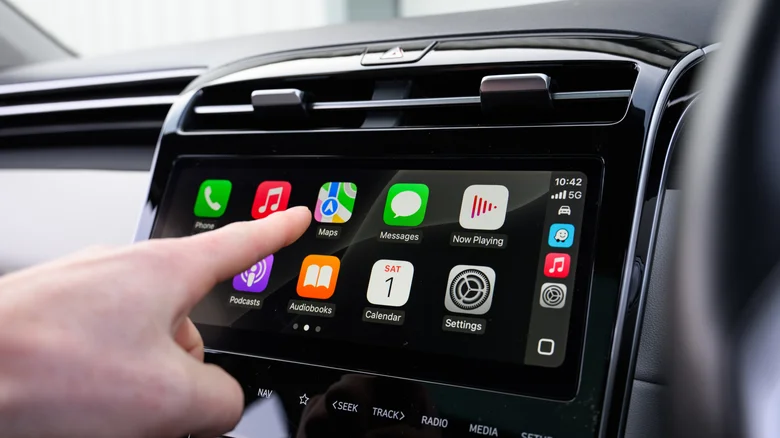
Apple’s Siri voice assistant is tightly integrated with CarPlay, which is great when you want completely hands‑free control but frustrating when suggestions keep popping up on the dashboard. Siri can guess where you might be going, which apps you might want, and which automations you might run, then throw those guesses directly onto your CarPlay screen. If you prefer a cleaner, distraction‑free view, you can fine‑tune or completely disable these Siri Suggestions both from the car and from your iPhone.
What Siri Suggestions Are In CarPlay
Siri Suggestions are predictive prompts generated from your daily habits, like the places you visit, the times you usually leave home, and the apps you regularly use. In CarPlay, that often shows up as suggestion tiles on the dashboard, such as a route to work at your usual time, a prompt to drive to a calendar event, or a card recommending that you trigger a smart‑home action when you reach your house. The feature is designed to save you taps and help you act quickly with a single touch or voice command, but it can easily become visual noise if you are not interested in those prompts.
Because CarPlay is meant to be used while driving, you might want strict control over what appears on‑screen so that only navigation and essential controls are visible. Siri Suggestions can crowd out the information you actually care about, especially if they are constantly guessing wrong routes or surfacing automations you never use. That is why Apple gives you multiple layers of control: you can block suggestions just for the car, mute them per drive, or shut them down entirely on your iPhone.
Turning Off Siri Suggestions On The CarPlay Dashboard
CarPlay includes its own setting for controlling suggestions, so you do not have to change how Siri behaves on the iPhone itself. On your vehicle’s CarPlay display, open the built‑in Settings app and look for an item related to Siri or “Suggestions in Dashboard.” Inside that menu, you will find a simple toggle that controls whether Siri Suggestions can appear on the CarPlay dashboard at all.
When you turn this switch off, suggestion tiles disappear from the CarPlay home and dashboard views, leaving more space for navigation, audio controls, and other apps you choose to keep visible. If you decide later that you miss those smart shortcuts, you can go back into the same Settings area and enable the toggle again to restore them instantly. This approach is ideal if you still appreciate Siri’s intelligence on your phone but want the in‑car interface to stay minimal and predictable.
Blocking A Single Suggestion For One Drive
Sometimes you do not hate the entire feature; you just hate one specific suggestion that keeps popping up during a trip. Maybe CarPlay keeps recommending a route you never use, or it is nudging you to run a smart‑home shortcut you are not interested in right now. Instead of disabling everything, you can silence that specific suggestion for the rest of your current drive.
When a suggestion appears on your CarPlay dashboard that you do not want, press and hold (long‑press) that suggestion tile. A small pop‑up will appear with choices, typically including an option similar to “Clear for This Drive.” Select that option, and CarPlay will remove that particular suggestion and avoid showing it again until you start a new drive. Other useful suggestions will continue to appear normally, so you keep the good stuff while killing the one that is annoying you.
Turning Siri Suggestions Off From Your iPhone
If you want to control the experience everywhere, not just in the car, you can manage Siri Suggestions directly from your iPhone. Open the Settings app and go to the Siri (or “Apple Intelligence & Siri”) section, where you will see a group of switches that control how and where suggestions appear throughout iOS. These switches typically govern whether suggestions show inside apps, on the Home Screen, and as proactive alerts or notifications.
Turning off these options removes Siri’s proactive prompts from those areas and also reduces the number of related suggestions that can show up once your iPhone is connected to CarPlay. If you switch every suggestion‑related toggle to the off position, you effectively disable Siri’s suggestion system system‑wide. Siri can still respond to voice commands if you leave that enabled, but it stops trying to guess what you want to do next based on your habits.
Steps: Disable Siri Suggestions In iOS
– Open the Settings app on your iPhone.
– Tap the Siri or “Apple Intelligence & Siri” menu.
– Turn off the option that shows suggestions inside apps.
– Turn off the option that shows suggestions on the Home Screen.
– Turn off the option that suggests apps you might want to open.
– Turn off the option that shows suggestion notifications or alerts.
Controlling Suggestions On A Per‑App Basis
If you like the idea of Siri being proactive but hate what it does with certain apps, you can manage Siri Suggestions on an app‑by‑app basis. In the same Siri settings area on your iPhone, there is a section that lists individual apps that support Siri and search suggestions. Tapping any one of these lets you decide whether that app is allowed to contribute suggestions or appear as a suggested action.
By turning suggestion options off for a single app, you prevent Siri from pulling shortcuts, destinations, or routines from that app, while every other app can continue to provide useful prompts. This is especially handy for noisy apps like shopping or social media, which may surface lots of actions you never want to trigger from CarPlay. Navigation, calendar, and communication apps, on the other hand, can remain allowed so that you still get time‑saving routes and reminders when they actually make sense.
Training Siri With “Suggest Less” Options
Beyond raw on‑off switches, there is a more subtle way to train Siri to stop pushing actions you do not care about. When a suggested shortcut appears on your iPhone — whether on the Home Screen, in search, or on the Lock Screen — you can usually press and hold that suggestion to open a small context menu. One of the options will say something like “Suggest Less” or “Show Less Often,” depending on the iOS version.
Choosing that option tells Siri that this particular shortcut, contact, or action is not very useful to you. Over time, repeating this on suggestions you dislike teaches the system to prioritize different actions that better match your habits. Because CarPlay pulls from the same underlying suggestion engine as your phone, this training also indirectly cleans up the suggestions you see while driving, without requiring you to disable everything in one shot.
Where Siri Suggestions Show Up Outside CarPlay
Siri Suggestions do not live only in the car; they are woven throughout iOS. You may see them as suggested apps and shortcuts at the top of search, as tiles or widgets on the Home Screen, as proactive cards on the Lock Screen, and as entries in the share sheet or keyboard bar. Each of these surfaces uses the same habit‑learning engine that watches what you do at certain times or locations and then tries to offer that again.
Because all of this behavior is linked, any change you make in the Siri settings or by pressing “Suggest Less” influences the entire ecosystem of prompts you get. If you aggressively remove useless shortcuts, block certain apps from participating, and turn off surfaces you do not care about, you end up with far fewer random prompts both on the phone and on the CarPlay dashboard. The end result is a system that feels more like a quiet assistant than a constantly nagging presence.
Why You Might Still Keep Some Suggestions
Even if Siri has annoyed you in the past, a carefully tuned set of suggestions can still be genuinely useful. Regular commuters often benefit from automatic routes that adjust for traffic and estimated arrival times, which can appear right when you plug into CarPlay. People with smart‑home gear often appreciate prompts to lock doors, close the garage, or adjust lights when arriving or leaving, especially when those actions are one tap away on the car’s display.
The sweet spot for a lot of drivers is leaving Siri Suggestions enabled in general but cutting out the worst of the noise. You can disable them on the CarPlay dashboard if you want a minimal look, block noisy apps from contributing, and selectively tap “Clear for This Drive” or “Suggest Less” when something unhelpful shows up. That way you keep the few shortcuts that genuinely save time, while getting rid of the junk that made you want to shut the whole thing off in the first place.