

Experiencing a lackluster picture from a high-end 4K television, particularly when viewing high dynamic range (HDR) content, can be a frustrating paradox. Owners of modern displays may find that cinematic HDR movies appear flat, next-generation video games lack vibrancy, and highlights fail to deliver the promised brilliance. Often, the root of this issue lies not in a defective panel or inferior source material, but in two frequently overlooked HDMI configuration settings. Television manufacturers, for various compatibility and power-saving reasons, sometimes ship sets with these advanced HDMI features disabled by default or restrict full functionality to specific physical ports. Consequently, a premium streaming device, gaming console, or Ultra HD Blu-ray player can be silently limited to outputting a standard dynamic range signal, effectively negating the visual benefits of the technology you invested in. Understanding and correcting these two settings is often the simplest and most dramatic picture quality upgrade available.
The Essential HDMI Signal Format Setting
The first critical setting is the HDMI signal format or mode assigned to the specific input your device uses. This setting acts as a gatekeeper, determining the maximum bandwidth and feature set the television will accept from that port. Common labels in TV menus include “Standard,” “Enhanced,” “Enhanced Format (VRR),” or “HDMI 2.1.” When left in the default “Standard” mode, the port is typically limited to older HDMI 1.4 or early 2.0 specifications, which cannot carry the full data required for 4K HDR at higher frame rates with wide color gamut (WCG). This forces the connected device to revert to a basic, non-HDR signal. Switching this mode to “Enhanced” or its equivalent instructs the television to unlock the port’s full bandwidth, allowing the complete HDR metadata—including formats like HDR10, Dolby Vision, and HLG—to pass through unaltered. This single change can instantly transform a washed-out image into one with deeper blacks, more vibrant colors, and specular highlights that truly pop.
The Crucial Role of Specific HDMI Ports
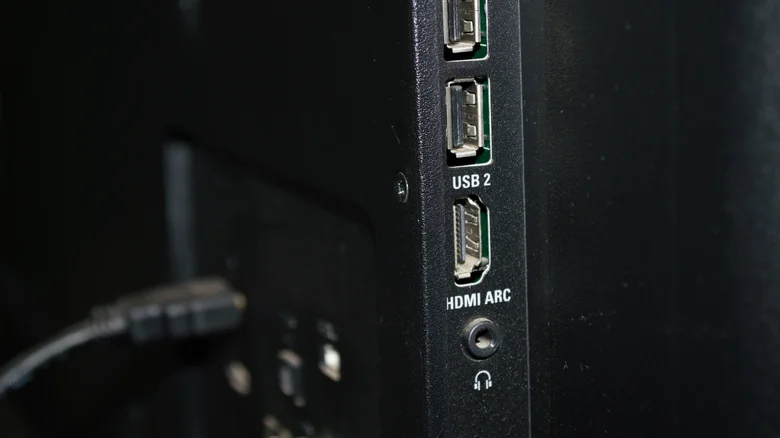
The second, equally important factor is the physical HDMI port itself. On many televisions, not all HDMI inputs are created equal. Manufacturers often designate only one or two ports as “full bandwidth” or “HDMI 2.1” capable, reserving them for advanced features like 4K at 120Hz, Variable Refresh Rate (VRR), Auto Low Latency Mode (ALLM), and sometimes specific HDR formats like Dolby Vision. Plugging a PlayStation 5, Xbox Series X, or high-end media streamer into a standard, non-enhanced port will prevent these features from activating, regardless of the signal format setting. For instance, a port may support HDR10 but not Dolby Vision, or it may cap 4K content at 30Hz instead of 60Hz. Consulting the television’s manual to identify the most capable ports—often labeled HDMI 3 and 4, or designated with a different color or icon—and connecting high-performance devices to them is a fundamental step for achieving optimal performance.
Navigating Manufacturer-Specific Menus and Terminology
The challenge for users is that the location and nomenclature for these settings vary significantly by brand and can be buried deep within system menus. On LG OLED TVs, the setting is typically found under Settings > All Settings > General > Devices > HDMI Settings > HDMI Deep Color. Samsung models may label it as Settings > Connection > Expert Settings > Input Signal Plus. Sony televisions often house it under Settings > Channels & Inputs > External Inputs > HDMI Signal Format. The key is to search for terms related to “HDMI,” “signal,” “format,” or “enhanced.” It is advisable to apply the enhanced setting only to the ports in use by HDR-capable devices to avoid potential compatibility issues with older equipment. After making the change, a power cycle of both the TV and the connected device may be necessary for the new handshake to complete successfully.
The Result: Unlocking the Full HDR Experience
When both conditions are satisfied—the correct HDMI port is used and its signal format is set to enhanced—the television is finally prepared to deliver the HDR experience as intended. The difference is frequently night and day. Shadows gain depth and detail instead of appearing as murky gray, colors become more saturated and natural, and bright elements like sunlight, explosions, or UI highlights achieve a luminous quality that standard dynamic range cannot replicate. This adjustment requires no new cables or hardware; it is purely a software configuration that unlocks the latent potential of your existing setup. For anyone disappointed with their TV’s HDR performance, this diagnostic check should be the first and most impactful troubleshooting step, often revealing that the hardware was never the problem, but rather a hidden software switch waiting to be flipped.


