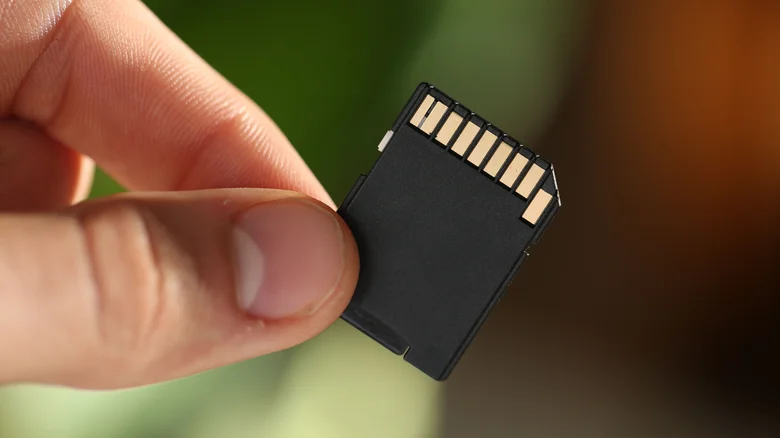
For nearly a quarter of a century, SD cards have been a crucial part of digital storage, quietly supporting the ever-growing needs of cameras, laptops, and portable gaming systems. While newer devices have moved toward faster, built-in NAND storage solutions, especially in smartphones, SD and microSD cards remain valuable tools for anyone with old tech lying around. If you’ve accumulated a collection of aging SD cards, don’t let them gather dust. Despite being slower than modern microSD Express cards or NVMe drives, these small pieces of flash memory can still serve a powerful purpose — they can be transformed into fully functional bootable drives.
Creating a bootable SD card allows you to carry a portable operating system in your pocket. Plug it into any computer with an SD card reader, and you’ll be able to run another OS entirely separate from the one installed on the local hard drive. This can be incredibly helpful for testing new software, running diagnostics on malfunctioning systems, or experimenting with new operating systems without the risk of altering your main setup. In short, what once was leftover storage space can become a highly practical, flexible recovery and testing tool.
Reviving Old SD Cards as Bootable Drives
The process of turning an old SD card into a bootable OS drive is easier than most people think. While USB flash drives are typically the go-to choice for portable systems, SD cards can accomplish the same task with the right software. One of the most reliable tools for the job is **Rufus**, a lightweight and intuitive program that simplifies the creation of bootable drives.
To begin, you’ll need an SD card of at least 8 GB (though larger is preferable), an SD card reader, and an ISO file — the digital image of the operating system you want to install. Popular choices include Linux distributions like Ubuntu, Fedora, or Mint, which are designed to run smoothly from external media. Windows can also be installed on an SD card this way, though it may require a bit more processing power.
Simply insert your SD card into a compatible reader. Your operating system should recognize it as a usable drive. If not, removing and reinserting the card often helps, or trying a different reader might solve the issue. Before writing any data, always back up any existing files on the card, because the entire card will be erased during the process. Once you’ve prepared the ISO and confirmed the correct drive selection, launch Rufus and choose the SD card from the device list. Select your ISO, click “Start,” and let the utility handle the rest. Within minutes, your spare SD card will become a bootable device capable of hosting an operating system anywhere you go.
Booting and Navigating from Your New SD Drive
Once your SD card is ready, you can boot a computer directly from it. To do this, restart the system and access its boot menu. The exact key to enter the menu varies between manufacturers, but common keys include **F2**, **F10**, **F12**, or **Esc**. When inside the menu, look for the option that allows you to choose your boot device and select the SD card from the list. Some systems even allow you to permanently set the SD card as the primary boot device, which can be useful for troubleshooting systems with faulty hard drives.
After booting, you’ll find yourself operating within the OS stored on the SD card. From here, you can run repairs, recover missing files, or test out new software in a completely self-contained environment. For developers or Linux enthusiasts, this setup is ideal for trying out beta builds or alternate configurations without modifying your main system. Even casual users can benefit, as this method doubles as a troubleshooting tool — for example, running virus scans on a compromised drive or rolling back corrupted system updates.
Practical Uses and Safety Considerations
Turning SD cards into bootable systems opens up an array of possibilities. You can use them for installing new operating systems, troubleshooting boot errors, or reformatting a computer’s hard drive — tasks that are often difficult when working from within a running OS. Another powerful feature of a bootable SD card is the ability to access your main disk’s files externally. This is especially valuable when dealing with a computer that won’t boot properly or needs data recovery without reinstalling the system. However, this control comes with responsibility; since you have full access to the system files, accidental deletions or unverified software installations could further harm your primary OS. Always use caution and ensure you only run trusted tools and software from your bootable setup.
Performance varies depending on the SD card’s class and speed. Older cards may exhibit slower read and write times, which can affect boot speed or system responsiveness. Still, for many tasks like diagnostics, lightweight Linux environments, or quick recovery tools, even modest SD cards perform perfectly adequately. Investing in a USB 3.0 SD reader can also help maximize speed on compatible systems.
Repurposing the Past for Modern Use
Transforming spare SD cards into portable operating systems is not only a clever way to recycle old hardware but also an environmentally responsible one. Instead of disposing of outdated storage, you’re giving it a new, functional purpose. Whether you’re a developer experimenting with multiple Linux flavors, an IT specialist handling system maintenance, or a curious tinkerer who enjoys testing firmware and recovery utilities, this method ensures that every piece of tech in your drawer can still find value.
In an age where data portability reigns supreme, the humble SD card proves once again that size doesn’t limit capability. What started as a storage medium for early digital cameras has now evolved into a surprisingly powerful tool for computing flexibility. By turning them into bootable drives, you extend their lifespan and give yourself a pocket-sized, portable operating system ready to bring any PC back to life — all without spending a single extra dollar on new hardware.