

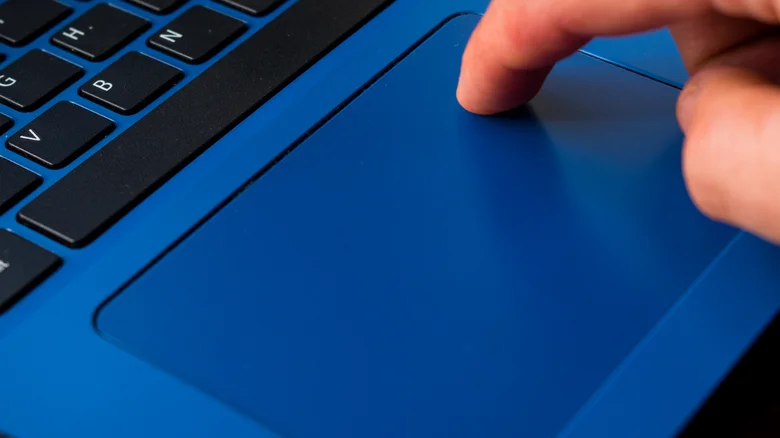
Laptop trackpads endure constant contact from fingers, accumulating oils, fingerprints, and debris that dull responsiveness and hinder precise gestures. While screens wipe clean easily with microfiber, the trackpad’s textured surface traps grime in seams and pores, potentially disrupting haptics or multi-touch controls over time. Regular maintenance restores smoothness without specialized tools, using household essentials to prevent buildup that could lead to erratic clicking or scrolling.
Simple ingredients like 70% isopropyl alcohol or pre-moistened wipes handle 99% of cleaning needs safely on MacBooks, Windows laptops, or Chromebooks. This routine extends hardware life, sharpens cursor control, and keeps the device feeling fresh amid daily portability wear from bags, desks, and laps.
Essential Supplies
Gather a lint-free microfiber cloth, 70% isopropyl or 75% ethyl alcohol wipes (or Clorox Disinfecting Wipes), and a thin edge like a plastic card or folded paper. Avoid bleach, sprays, abrasives, or direct liquids on surfaces to prevent damage or seepage into ports. These prevent streaks and corrosion while disinfecting effectively.
Preparation Steps
Power off and unplug the laptop completely for safety. Remove any case or skin covering the trackpad for unobstructed access. Work on a flat, stable surface away from liquids to minimize risks during the process.
Cleaning Process
Dampen the microfiber cloth lightly with alcohol—never soak it—or use a single wipe. Gently wipe the trackpad in circular motions with minimal pressure, focusing on the center where oils concentrate most. For edges, slide a plastic card or paper along the seam to dislodge embedded grit without scratching.
Let it air dry fully before testing gestures. Repeat if shine persists, but stop at stubborn spots—professional service beats forcing residue that could harm sensors underneath.
Frequency and Prevention
Incorporate trackpad cleaning into bi-monthly routines or every six months alongside full device upkeep, ramping up for heavy users or visible gloss. Wash hands before sessions to reduce new oils, and pair with USB port cleaning using a toothpick for compressed air alternatives.
Realistic expectations matter: years of use naturally wear finishes, so post-clean shine approximates new rather than showroom perfect. This upkeep counters travel grime from coffee shops or flights effectively.
Common Pitfalls to Avoid
| Mistake | Why Avoid | Safe Alternative |
|---|---|---|
| Direct liquid application | Seeps into seams, damages electronics | Cloth dampening only |
| Excessive scrubbing | Wears coating, scratches surface | Gentle circles |
| Household cleaners | Leaves residue, corrodes plastics | 70% isopropyl |
| Ignoring edges | Grime buildup affects tracking | Card edging |
Advanced Maintenance Tips
– Test gestures post-clean to confirm haptics and multi-touch restore properly.
– For oily skin types, clean weekly during high-use periods like workweeks.
– Store laptops in protective sleeves to limit external dust exposure.
– Combine with keyboard compressed air blasts for comprehensive sessions.
Consistent care transforms the trackpad from grimy nuisance to reliable input, ensuring laptops perform at peak without costly repairs. This effortless habit sustains usability through years of heavy lifting.


