

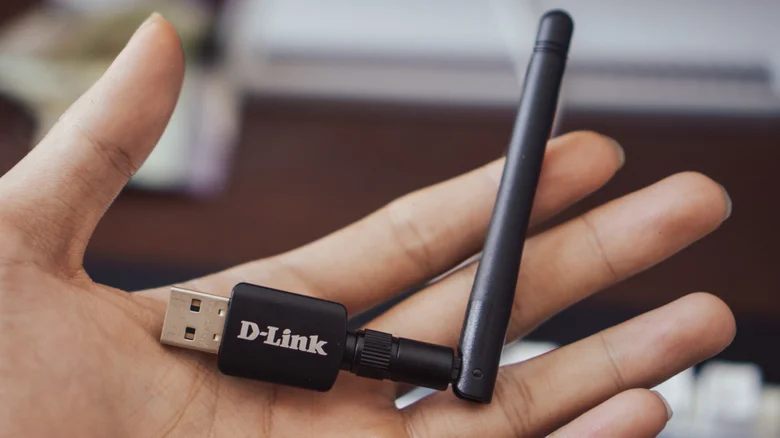
USB Wi-Fi adapters look convenient at first glance, but once you understand their limitations, it becomes clear why they are rarely the best option for serious or long-term use. They are compact, affordable, and easy to set up, which makes them attractive to beginners and budget-conscious users. However, when compared to PCIe Wi-Fi cards and other networking solutions, USB adapters often fall short in speed, stability, and reliability, especially under heavy workloads like online gaming, 4K streaming, or large file transfers.
Why USB Wi-Fi Adapters Seem Appealing
One of the main reasons USB Wi-Fi adapters are so popular is their simplicity. They are usually plug-and-play, require no case opening, and can be installed by virtually anyone in seconds. For desktop PCs that lack built-in wireless, a USB adapter can serve as a quick fix, bypassing the need to deal with PCIe slots, screws, or motherboard layouts. Their small size makes them easy to carry, and they are typically cheaper than most internal networking hardware, which is especially helpful for users on a tight budget.
USB adapters are also useful when PCIe slots are already occupied by components like GPUs or capture cards, or when a user is uncomfortable working inside a PC case. In those scenarios, a USB Wi-Fi dongle can be the only realistic option. Modern adapters that support Wi-Fi 6 or newer standards can deliver respectable speeds in ideal conditions, making them more than adequate for light browsing, video streaming, and basic productivity tasks.
Why PCIe Wi-Fi Cards Still Win
Despite the advantages of USB adapters, PCIe Wi-Fi cards remain the preferred choice for power users and anyone who values a strong, consistent connection. PCIe cards are directly connected to the motherboard, giving them access to higher bandwidth, lower latency, and better power delivery compared to USB ports. This translates into more stable throughput, especially when multiple tasks are competing for network resources.
Another major advantage of PCIe Wi-Fi cards is their antenna design. Many models include external, adjustable antennas connected via short cables, allowing you to position them away from the metal case and other components that can interfere with signal quality. This can dramatically improve reception and reduce dead zones. In contrast, most USB adapters either have tiny fixed antennas or internal ones, which limits their ability to capture strong signals in challenging environments.
Core Weaknesses of USB Wi-Fi Adapters
The same traits that make USB Wi-Fi adapters small and cheap also restrict their performance. Nano-style dongles with internal antennas are especially vulnerable to interference from walls, furniture, and nearby electronic devices. When they sit close to metal surfaces, desk frames, or the side of a PC case, signal strength and speed often drop sharply. In crowded wireless environments, this can lead to frequent disconnects, lag spikes, and inconsistent bandwidth.
Thermal performance is another concern. Compact adapters have little to no room for cooling, so they can overheat during sustained high-usage sessions like competitive online gaming or large media downloads. When temperatures climb, the adapter may throttle, reduce speed, or temporarily stop working until it cools down. If the computer itself is running hot or the room is warm, the problem becomes more noticeable and frequent.
USB Bandwidth and Port Limitations
Beyond the wireless side of the equation, USB port limitations can create bottlenecks. Many older systems still rely on USB 2.0 ports, which have a theoretical maximum throughput of 480 Mbps. If your internet plan or adapter supports speeds above 1 Gbps, the USB 2.0 interface will prevent you from taking full advantage of that bandwidth, regardless of how advanced the Wi-Fi standard is. Even under ideal conditions, you will be capped by the port rather than the network.
Newer USB 3.x ports offer much higher speeds and are far better suited for high-performance adapters. These ports typically have blue or teal inserts and can handle several gigabits per second, greatly reducing the chance of a bandwidth bottleneck. However, if the adapter is accidentally plugged into an older port, or if multiple devices are sharing the same internal bus, performance can still degrade. This makes port selection and system layout important considerations when relying on USB for networking.
USB vs PCIe Wi-Fi: Key Differences
| Feature | USB Wi-Fi Adapter | PCIe Wi-Fi Card |
|---|---|---|
| Installation Difficulty | Very easy, plug-and-play | Requires opening case and using a slot |
| Typical Performance | Moderate, can be inconsistent | Higher, more stable under load |
| Cooling and Thermals | Limited, prone to overheating | Better airflow and heat dissipation |
| Antenna Options | Small or internal antennas | Large, adjustable external antennas |
| Best Use Case | Budget, light use, temporary setups | Gaming, heavy workloads, permanent setups |
Where USB Wi-Fi Adapters Still Make Sense
Despite their flaws, USB Wi-Fi adapters remain very practical for laptop users and specific desktop scenarios. Older laptops often ship with outdated or failing Wi-Fi chips, and replacing the internal module is either complicated or impossible on many models. In such cases, a modern USB adapter can breathe new life into the device, enabling support for the latest Wi-Fi standards without a full hardware overhaul.
Higher-end USB adapters with external docks or articulated antennas can further improve reception by allowing you to position the adapter away from the laptop body or desk obstructions. This flexibility can reduce interference and boost signal quality, especially in rooms where the router is far away or separated by multiple walls. For travelers or students, being able to quickly plug in a dongle and get a strong connection is often more valuable than squeezing out the last bit of performance.
How to Safely Use a USB Wi-Fi Adapter on a Laptop
When adding a USB adapter to a laptop that already has built-in Wi-Fi, it is usually best to disable the internal wireless module to avoid conflicts and confusion. Running two active Wi-Fi interfaces at once can cause unstable connections or force the operating system to switch unpredictably between adapters. Disabling the internal card ensures that the USB adapter is the primary connection and simplifies troubleshooting.
- Open the Device Manager from the Start menu search.
- Expand the “Network adapters” section to view all network devices.
- Locate the built-in Wi-Fi adapter in the list.
- Right-click the internal adapter and select “Disable device.”
- Confirm the action when prompted and close Device Manager.
- Plug in the USB Wi-Fi adapter and connect to your preferred network.
- To restore the original setup later, repeat the steps and select “Enable device.”
Choosing the Right Tool for the Job
USB Wi-Fi adapters have a clear role: they are affordable, portable, and ideal for quick fixes or modest network demands. However, for users who care about maximum performance, low latency, and long-term stability, especially on desktop systems, PCIe Wi-Fi cards are usually the smarter investment. Their superior antennas, better cooling, and direct connection to the motherboard give them a lasting edge.
When deciding between the two, consider how demanding your typical tasks are, what ports and slots your system offers, and how comfortable you are with hardware installation. For light browsing and occasional streaming, a USB adapter might be all you need. For competitive gaming, heavy downloads, or professional workloads, stepping up to a PCIe solution can transform the reliability and speed of your wireless connection.


