

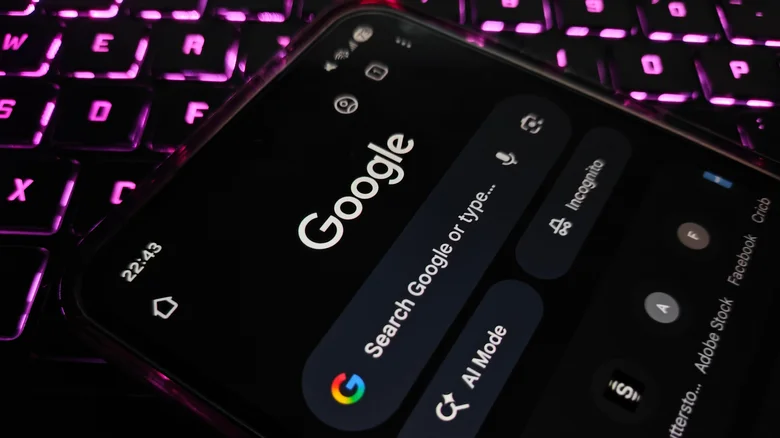
Managing passwords can be one of the most frustrating parts of everyday digital life. Between online subscriptions, social media accounts, and banking apps, most people juggle dozens of logins. Password managers exist to solve that headache, allowing you to create and store strong, unique passwords without memorizing each one. Among these solutions, Google’s password manager stands out for its convenience and accessibility — it’s built right into Chrome and across Android devices, meaning you can use it without downloading any extra software. But the question remains: is Google’s password manager truly safe, or just convenient?
How Google’s Password Manager Works
When you create or log into an account using Chrome or an Android device, Google’s password manager automatically offers to suggest and save a strong password. The credentials are then synced across all your devices linked to your Google account. You can access, edit, or delete saved passwords in your account settings or directly from the browser’s password manager interface.
This seamless integration makes it perfect for anyone who wants to save time and reduce the chaos of juggling multiple passwords. It also provides features like autofill, password leak detection, and support for two-factor authentication (2FA) to strengthen account protection.
Evaluating Security — Strengths and Weaknesses
At a surface level, Google’s password manager is secure enough for most users. Passwords are encrypted when stored and transmitted, and 2FA adds another protective layer against unauthorized access. However, a deeper look reveals several distinctions between Google’s solution and standalone, privacy-focused password managers such as Bitwarden or NordPass.
| Feature | Google Password Manager | Dedicated Password Managers |
|---|---|---|
| Encryption Type | Standard encryption; optional on-device encryption | Zero-knowledge client-side encryption |
| Cross-Platform Sync | Excellent — integrated with Chrome and Android | Extensive — supports multi-OS access |
| Security Control | Dependent on Google account security | User maintains full encryption key control |
| Extra Features | Basic password management functions | Dark web scans, password audits, data breach alerts |
The Encryption Debate: Trust vs. Control
Unlike zero-knowledge systems, Google’s model means that encryption keys may still be accessible on your device, giving Google potential access to decrypt data under specific conditions. Although this is extremely unlikely to be exploited, it does make the system less private than some alternatives where even the provider can’t view your passwords.
This design poses risks in rare situations — for instance, if your device were compromised by malware or if Google’s servers ever suffered a breach. While such massive incidents are rare and Google maintains strong cloud security standards, relying entirely on one company to safeguard both your personal data and credentials introduces a single point of failure.
If a wide-scale data breach occurred, it wouldn’t just jeopardize your passwords — it could potentially expose emails, identities, and synced account details. Whether this happens depends on broader infrastructure vulnerabilities, but the possibility underlines the importance of evaluating what level of control you want over your own data.
When Google’s Password Manager is a Good Fit
Despite some privacy trade-offs, Google’s system works perfectly for most casual users. If you’re already deeply embedded in the Google ecosystem, using Android and Chrome daily, it makes password handling effortless. Everything syncs instantly, and autofill works across websites and apps without the hassle of additional subscriptions or manual setups.
When to Look for an Alternative
If you handle particularly sensitive data — such as client credentials, business logins, or financial records — you might want stronger privacy measures and independence from a single platform. Dedicated password managers offer advanced protection and let you manage data across operating systems freely.
You can enhance your personal security setup by:
– Choosing a **zero-knowledge password manager** to ensure only you hold the encryption key.
– Enabling **multi-factor authentication (MFA)** across all important accounts.
– Regularly performing **password hygiene checks** to replace weak or reused credentials.
– Keeping your devices updated to avoid exposure to malware or security bugs.
Privacy vs. Convenience — The Balancing Act
In the end, deciding whether Google’s password manager is “safe enough” depends on what matters more to you: convenience or complete privacy. For the majority of users, it strikes an excellent balance. It’s fast, integrated, and backed by one of the most secure infrastructures in tech. However, privacy enthusiasts or professionals managing highly confidential data may prefer alternatives that emphasize user control and deep encryption.
Google’s password manager simplifies internet security for everyday life — a practical companion for casual browsing and digital organization. But for those seeking full autonomy over their credentials and absolute control over encryption keys, moving to a dedicated password manager might be the smarter long-term move.


