USB ports rarely fail abruptly, often exhibiting clear symptoms well before total breakdown. Inconsistent connectivity ranks as the primary indicator, where devices only maintain connection at specific angles or disconnect with minor jostling. This behavior signals bent internal pins or loosened housing, common from repeated insertions or physical stress over time.
Sluggish data transfers provide another red flag, with file copies stalling midway or extending far beyond normal durations despite reliable cables and destinations. Even high-speed USB 3.0 ports drop to ineffective rates, frustrating workflows and hinting at degraded signaling pathways within the connector.
Physical Inspection and Common Damage Indicators
Visual examination reveals much about port health. Direct bright light into the receptacle to spot bent pins, accumulated debris, corrosion, or discoloration from oxidation. Misaligned or recessed pins prevent solid contact, while visible wear on metal shielding suggests excessive friction damage.
A loose or wobbly fit during insertion points to weakened retention springs or fractured plastic housings, prevalent in laptops subjected to frequent port flexing. Overheating during use—detectable by warmth around the port—indicates shorted pins or power delivery faults, accelerating further degradation.
Charging and Power Delivery Failures
Intermittent charging affects phones, peripherals, or accessories plugged into suspect ports, where power delivery fluctuates or ceases entirely. Operating systems like Windows or macOS may log errors about excessive USB power draw, unrecognized devices, or hardware malfunctions in system logs or notifications.
Distinguish port issues from cable faults by cross-testing across multiple setups. Persistent problems across devices confirm connector failure, while isolated incidents implicate accessories. Avoid forcing connections, as this exacerbates pin damage and risks short-circuiting connected electronics.
Step-by-Step Troubleshooting for Damaged USB Ports
- Clean the port using compressed air to dislodge dust, followed by a soft plastic toothpick for stubborn lint—never metal tools that risk shorts.
- Test the device and cable on alternate ports or computers to isolate the faulty component.
- Update USB drivers and firmware through Device Manager (Windows) or System Information (macOS) to rule out software glitches.
- Perform a power cycle: shut down, unplug power, hold power button 30 seconds, then reconnect and test.
- Monitor Event Viewer or Console logs for recurring USB errors confirming hardware failure.
Repair and Replacement Solutions
Desktops offer straightforward fixes via inexpensive PCIe USB expansion cards ($15-30), adding multiple fresh ports with superior bandwidth. Installation requires opening the case, slotting the card, and installing drivers—achievable for intermediate users in under 30 minutes.
Laptop repairs prove costlier, as soldered USB-C/Thunderbolt ports demand motherboard-level desoldering and replacement by professionals, often $100-300 depending on model complexity. Weigh repair costs against device age; newer machines justify investment, while older units favor replacement.
Workarounds for Continued Productivity
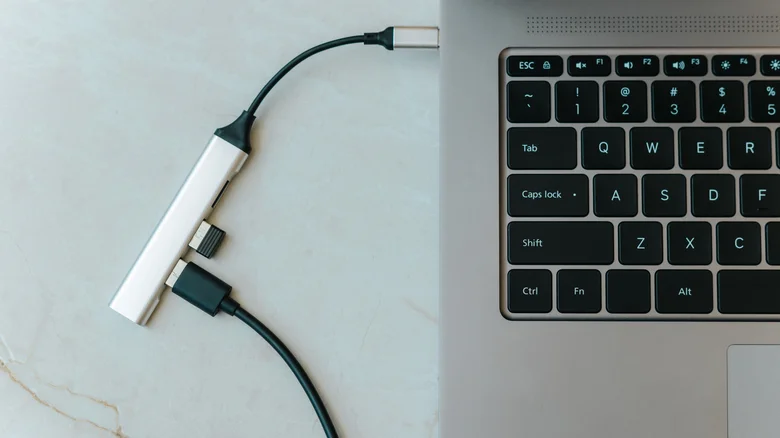
Powered USB hubs or docking stations circumvent damaged ports entirely, delivering multiple high-speed connections with independent power supplies. USB-C docks expand laptops with HDMI, Ethernet, and SD readers alongside USB, restoring full functionality without invasive repairs.
Wireless alternatives like Bluetooth peripherals reduce wired dependency during repairs. For critical workflows, maintain spare hubs preemptively. Proactive port care—gentle insertions, debris avoidance, cable strain relief—extends connector lifespan significantly across devices.