

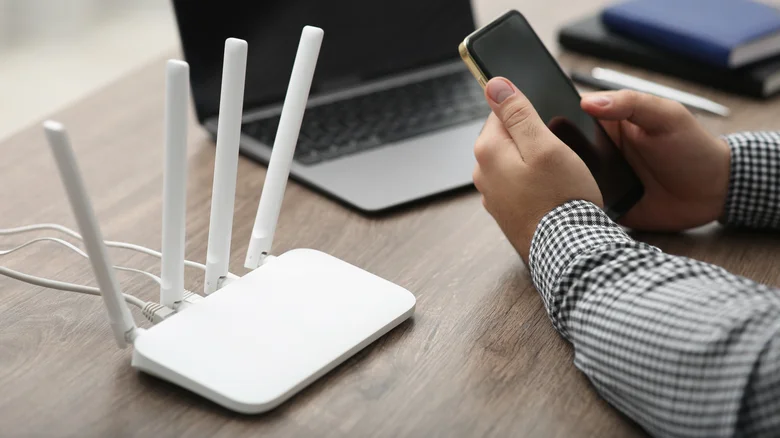
Wi-Fi has become an essential utility for nearly everyone, but unsecured networks can fall victim to unwanted users stealing bandwidth and compromising security. Random individuals accessing your home Wi-Fi slow down your internet speed, consume data limits, and expose private information to cyber threats. Monitoring connected devices and removing intruders is critical for maintaining a safe, fast, and reliable network.
How Unauthorized Devices Impact Your Network
Even with a top-tier router, your internet speed is shared across all connected devices. When strangers latch onto your Wi-Fi, they monopolize bandwidth, causing buffering, slow downloads, and spotty connections for legitimate users. If your plan has a data cap, freeloaders can consume your allocation and trigger unexpected fees.
More alarmingly, unauthorized access jeopardizes network security. Hackers can exploit your router as a gateway to spy on traffic, intercept personal messages, or carry out illegal actions masked behind your IP address. Such misuse may also result in legal troubles with your internet service provider, despite your own innocence.
Effective Ways to Detect and Remove Wi-Fi Intruders
The methods for identifying and kicking off unauthorized devices vary based on your router and available tools. Here are the most common approaches:
- Router Apps: Modern routers like Google Nest Wi-Fi or Google Wi-Fi provide companion smartphone apps that display connected devices with details like IP addresses and usage statistics. Suspicious devices can be immediately flagged, prompting password changes or device blocks.
- Third-Party Network Scanners: Utilities such as Wireless Network Watcher and Fing run on PCs or smartphones to scan your network. These apps list connected device names, MAC addresses, and manufacturers, assisting in spotting unknown devices. Fing additionally allows remote blocking of devices from your mobile device.
- Router Web Interface: Access your router’s admin panel via its IP address entered in a browser. This panel usually lists all active connections but can require networking know-how to interpret details effectively. Here you can also change Wi-Fi credentials or set up MAC address filtering to restrict access.
Steps to Secure Your Wi-Fi Network
- Regularly review connected devices via your router’s app or web interface.
- Change your Wi-Fi password immediately if unauthorized devices are detected.
- Use strong WPA3 encryption instead of the outdated WEP or WPA.
- Enable network guest mode for visitors to isolate their devices from your primary network.
- Disable WPS (Wi-Fi Protected Setup) to prevent easy brute force attacks.
- Keep your router firmware up to date to patch security vulnerabilities.
Utility Comparison for Monitoring Wi-Fi Devices
| Tool | Platform | Features | Ease of Use | Device Blocking |
|---|---|---|---|---|
| Google Home / Google Wi-Fi App | iOS, Android | Device list, data usage, simple blocking | High | Yes |
| Wireless Network Watcher | Windows | Device list, MAC & IP info | Medium | No |
| Fing | iOS, Android, Windows | Device identification, network scanning, device blocking | High | Yes |
| Router Admin Interface | Web-based | Comprehensive device controls, settings | Medium | Varies by router |
Proactively monitoring your home Wi-Fi preserves speed, security, and peace of mind. Regular checks combined with robust password management ensure that only trusted devices enjoy your internet connection, protecting your digital life from unauthorized intrusions.


