

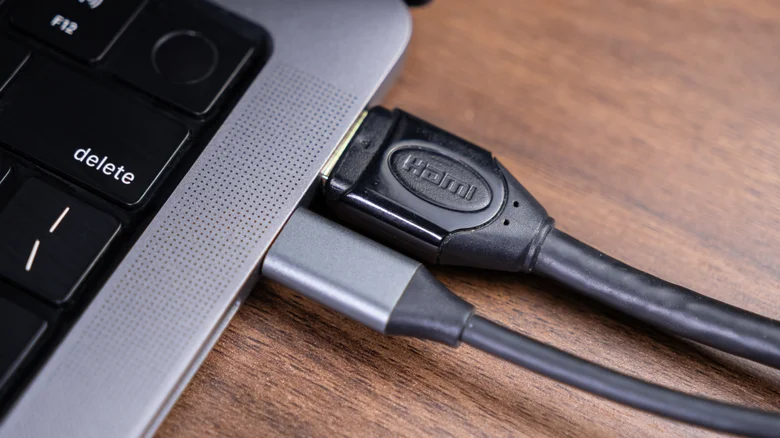
Connecting an external display to your computer or media device appears straightforward, but there’s much more to it than just plugging in a cable. Between power delivery, transfer speeds, display resolutions, and compatibility, the best connection depends on your hardware and how you plan to use it. While HDMI remains the universal standard for entertainment setups in 2025, USB-C and Thunderbolt connections are rapidly becoming the preferred choice for computers, monitors, and portable workstations.
Understanding HDMI and USB-C Connections
Both HDMI and USB-C can transmit media between your computer and an external display, but they operate differently.
– **HDMI (High Definition Multimedia Interface)** is built around universal compatibility and simplicity. It carries both video and audio signals through a single cable, making it ideal for TVs, projectors, and gaming consoles.
– **USB-C**, on the other hand, offers a more advanced, flexible interface. It can send video, audio, data, and power simultaneously — supporting everything from charging devices to transferring footage to displaying 8K video when combined with standards like DisplayPort Alt Mode or Thunderbolt.
This versatility is what positions USB-C as the future of wired connectivity, particularly for modern computers and monitors.
Transfer Speeds and Media Support
When comparing HDMI and USB-C, speed and bandwidth are critical factors that determine performance and capability. HDMI’s functionality largely depends on its version, while USB-C’s performance correlates with its specific protocol, whether it’s standard USB 3.1, DisplayPort Alt Mode, or Thunderbolt.
| Connection Type | Version / Protocol | Bandwidth (Gbps) | Max Supported Resolution | Primary Use Case |
|---|---|---|---|---|
| HDMI | 1.3 / 1.4 | 10.2 | 4K @ 30-60Hz | Standard TVs, basic monitors |
| HDMI | 2.0 / 2.1 | 18 – 48 | 4K @ 120Hz, 8K @ 60Hz | Gaming, modern TVs |
| USB-C | USB 3.1 | 10 | 4K @ 60Hz | Video and data transfer |
| USB-C (Thunderbolt 3 / 4) | DisplayPort Alt Mode | 40 | 8K @ 60Hz, multi-display | Professional monitors, docking setups |
If your television or monitor doesn’t exceed 4K resolution or 60Hz refresh, a simple HDMI 2.0 cable works perfectly fine. However, if you use a high-refresh gaming monitor, a professional editing display, or need a clean desk with single-cable connectivity, USB-C or Thunderbolt offers far more flexibility.
Choosing the Right Connection for Your Setup
Your ideal display connection depends on what you prioritize — simplicity, compatibility, or high performance.
– **Choose HDMI if:**
– You’re connecting to a TV or an older monitor.
– Your setup doesn’t require power delivery or additional data transfer.
– You want a widely supported, plug-and-play connection.
– **Choose USB-C or Thunderbolt if:**
– You want to minimize cable clutter and have one cable handle power, data, and video.
– You use modern laptops like MacBooks or Windows ultrabooks that support DisplayPort Alt Mode.
– You rely on a docking station or hub for multiple displays or external drives.
USB-C monitors often function as all-in-one hubs, providing not just display output but also USB-A ports, Ethernet, and laptop charging through Power Delivery (often up to 100W). This capability is a game changer for professionals who value minimalistic, efficient workspaces.
Compatibility Considerations
Before committing to one format, ensure your hardware fully supports the features you expect. Many devices feature **USB-C ports that don’t support Thunderbolt or DisplayPort**, meaning they can’t transmit video despite the connector’s identical shape. Always check your device’s specifications — a port labeled only as “USB 3.2” might not output video signals.
Similarly, while HDMI supports wide compatibility, it can be limiting if your hardware requires higher refresh rates or multiple monitor setups. In contrast, USB-C and Thunderbolt connections can support **dual or triple 4K displays** through a single port if your device and dock support it.
Cost and Market Availability
HDMI monitors are more affordable and widely available, which makes them great for general consumers. Even the newest 4K and 8K TVs typically rely on HDMI 2.1. Meanwhile, the number of **Thunderbolt and USB-C monitors** is growing, although they tend to come at a premium price. Businesses and professionals seeking advanced display configurations or docking capabilities often find these higher-end displays worth the investment due to their versatility.
Final Thoughts
Both HDMI and USB-C deliver reliable video and audio transfer, but each has clear strengths. HDMI remains the universal, straightforward choice for home entertainment systems and everyday monitors. USB-C, with its advanced speed, bi-directional power, and multi-functionality, represents the modern standard for professionals who demand efficiency, mobility, and clean connectivity.
If you value plug-and-play simplicity or primarily use TVs, HDMI will serve you well. But if you want an all-in-one cable for power, data, and video — especially for laptops and creative workflows — USB-C or Thunderbolt is the smarter, future-ready choice. Ultimately, your setup’s priorities and hardware compatibility will guide which connector truly fits your digital life.


