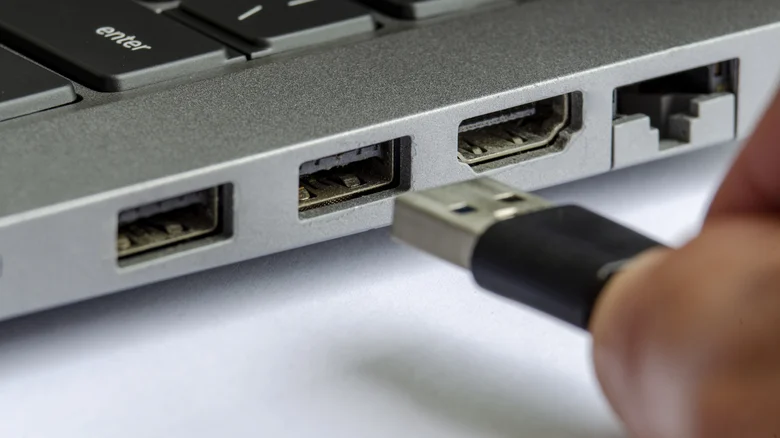
When connecting external drives or USB peripherals to your computer, selecting the appropriate USB port can affect performance. While USB Type-A ports are universally compatible with USB-A devices, significant differences exist in speed and power delivery between various port versions. Using the correct port ensures faster data transfers and better charging efficiency.
Most computers come with multiple USB Type-A ports that may follow specifications like USB 2.0, USB 3.0, USB 3.1, or USB4. Although every port will physically fit a USB-A plug, older USB 2.0 ports transfer data slower than USB 3.x models, limiting devices designed for fast connections. For example, a USB 3.1 external hard drive plugged into a USB 2.0 port operates at the slower 2.0 speed, while a USB 2.0 device won’t gain speed benefits even if plugged into a USB 3.1 port.
USB Port Differences: Speed and Power
USB standards impact both data throughput and power output, crucial for device performance. The following summarizes common USB Type-A versions and their capabilities:
| USB Version | Maximum Data Speed | Power Delivery | Common Port Color |
|---|---|---|---|
| USB 2.0 | 480 Mbps | Up to 2.5 watts | Black or Grey |
| USB 3.0 / USB 3.2 Gen 1 | 5 Gbps | Up to 4.5 watts | Blue or Orange |
| USB 3.1 / USB 3.2 Gen 2 | 10 Gbps | Up to 4.5 watts | Purple or Red |
| USB4 | Up to 40 Gbps | Up to 100 watts | Varies (may use USB-C) |
The increased power delivery in newer USB versions benefits devices like smartphones and handheld gaming PCs, enabling faster charging when connected to USB 3.1 or USB4 ports over USB 2.0. This is important for power-hungry devices requiring both data throughput and electric power through the same port.
Special Cases Requiring High-Speed Ports
Some hardware demands specific USB ports due to high-speed data and power needs. For instance, virtual reality (VR) headsets usually require USB-C ports with USB 3.0 or higher support. Older ports like USB 2.0 cannot provide sufficient bandwidth for VR’s combined video, audio, and data streams, leading to malfunction or failure to connect properly.
When plugging in such devices, verify port compatibility to avoid errors or degraded performance. VR setups or similar peripherals often include recommendations specifying minimum USB standards.
How to Identify Your Computer’s USB Ports
Determining the USB version of the ports on your laptop or desktop is straightforward with a few visual and software clues. Color-coding is the fastest method:
- Blue typically indicates USB 3.x ports (SuperSpeed USB)
- Purple indicates USB 3.1 or special charging USB ports (e.g., Huawei SuperCharge)
- Black or Grey generally means USB 2.0
- Yellow, Red, Orange hint toward enhanced charging or faster USB specifications
If colors are absent or unclear, software tools help. On Windows, Device Manager or USB tree view utilities reveal USB hub and port information, including speed and version. On Mac, the System Information utility lists USB devices and speeds.
USB-C ports, common on newer devices, support the latest data and power protocols but look different from USB-A. They are reversible and can deliver up to 240 watts power, vastly exceeding the 2.5–10 watts from legacy Micro USB connectors.