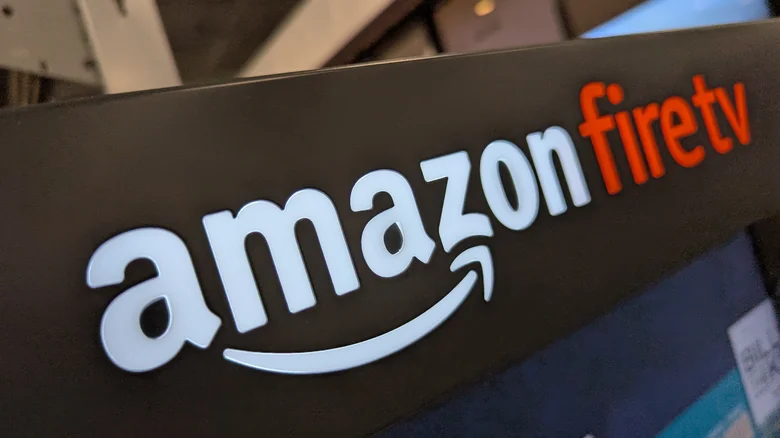
Amazon’s Fire TV Stick is one of the most popular plug-and-play streaming devices on the market, offering easy access to entertainment from platforms like Prime Video, Netflix, and Hulu with just a few clicks. However, what happens when you have no Wi-Fi access, or simply prefer to use your Fire TV Stick for offline media playback? Normally, the device relies heavily on an internet connection for installing apps, streaming content, syncing updates, and controlling smart devices. Without the web, its main functions seem limited — but with a little creativity, you can still make your Fire TV Stick a valuable offline media device.
It’s true that most of what makes a Fire TV Stick useful depends on Wi-Fi. Streaming apps cannot load without it, and most of the device’s interface is designed for an online experience. However, there’s a way to break free from those restrictions. By installing a custom launcher such as **Wolf Launcher**, you can transform your Fire TV Stick into a fully offline media player. Once properly set up, you can play locally stored movies, TV shows, music, and photos via media clients like **Plex** or **Kodi**. While it requires some initial setup using an internet connection, the end result gives you control over your media without needing consistent online access.
Transforming Fire TV into an Offline Device
To make your Fire TV Stick work offline, the key is installing an alternative launcher that allows greater customization and flexibility. Wolf Launcher is a popular choice because of its sleek design, lack of advertisements, and intuitive navigation. Unlike Amazon’s stock interface, which is heavily integrated with online services, Wolf Launcher prioritizes local content access. It’s ideal for tech enthusiasts who want the simplicity of a standalone media center that runs even when disconnected from the web.
Before diving in, you’ll need to perform a few initial steps while still connected to Wi-Fi. This setup process involves sideloading apps, which means manually installing software from external sources rather than from Amazon’s official Appstore. You’ll need your Fire TV Stick, a stable connection (temporarily), and an app called **Downloader** to fetch the installation file for Wolf Launcher.
Step-by-Step: Installing Wolf Launcher
Setting up Wolf Launcher requires a small degree of technical comfort, but the process is straightforward. Using your Fire TV Stick remote, navigate to the **Find** section on the home screen, click **Search**, and type “Downloader.” Once the app appears, install it. Downloader lets you directly download files from specific URLs. But before using it, you’ll need to enable **Developer Options** on your device so that sideloading external apps is permitted.
Here’s what to do:
1. Go to **Settings** on your Fire TV Stick.
2. Open **My Fire TV**.
3. Choose **About**, then highlight your device name and click it seven times to activate **Developer Options**.
4. Go back to **My Fire TV**, then open **Developer Options**.
5. Select **Install unknown apps**, and enable **Downloader**.
Now that your device can sideload applications, open **Downloader**, click into the search or URL field, and type:
**firesticktricks.com/wolf**
Hit “Go” to begin downloading the Wolf Launcher APK file. Once the download is complete, follow the prompts by selecting **Install**, then tap **Done**. You’ll then be asked whether you want to delete the APK file — confirm this to save storage space. Wolf Launcher will now appear under **Your Apps & Games**. To make it your default interface, open the Wolf Launcher app, go into **Settings**, navigate to **Launcher Options**, and select **Disable Stock Launcher**. The next time your Fire Stick boots, it will load directly into the new environment.
Using Your Offline Fire TV Stick
Once Wolf Launcher is active, your Fire TV Stick is effectively freed from Amazon’s online ecosystem. You can organize your apps, create custom media grids, and access media stored locally on another device. To play offline content, apps like **Plex** or **Kodi** are ideal. Both allow you to connect to a personal library of movies, shows, or music stored on a PC, network-attached storage (NAS) drive, or even an external hard drive connected through an adapter.
To ensure smooth playback, keep the storage device you’re accessing powered on and configured to share files over your local network. As long as your Fire TV Stick is connected to the same local network (even without the wider internet), you’ll be able to browse and stream offline content.
Staying Offline Without Losing Functionality
While Wolf Launcher offers more freedom, there’s one crucial precaution to keep in mind: avoid updating your Fire TV Stick’s firmware once you’ve configured your custom launcher. Amazon occasionally rolls out updates that disable sideloaded or third-party launchers, effectively forcing users back into the standard Fire OS environment. Disabling automatic updates helps preserve your setup and ensures your offline system remains stable.
If your primary goal is building a lightweight, offline home theater, the Fire TV Stick with Wolf Launcher is a smart, cost-effective option. However, if you’d rather experiment further or want devices that support sideloading without as many restrictions, alternatives from **Roku** or **Onn** streaming boxes might suit you. These platforms also allow for flexible configuration and can serve as the foundation for simple local media streaming setups.
Reimagining Streaming Beyond the Internet
The ability to repurpose a Fire TV Stick for offline functionality highlights how versatile modern streaming hardware can be with a bit of customization. Originally built for cloud-based entertainment, Amazon’s compact device can easily shift into a powerful offline player capable of running entirely local media collections. This makes it a practical tool for travelers, minimalists, or anyone looking to enjoy media in areas with unreliable networks.
By pairing your Fire TV Stick with Wolf Launcher and a good local library of content, you’re effectively building a private, ad-free entertainment hub. Whether you want to watch movies stored on a hard drive or revisit old family photos, you’ll retain full control—and all without needing an internet connection. In an era where everything seems to depend on being online, there’s something refreshingly empowering about truly owning the way your device operates.