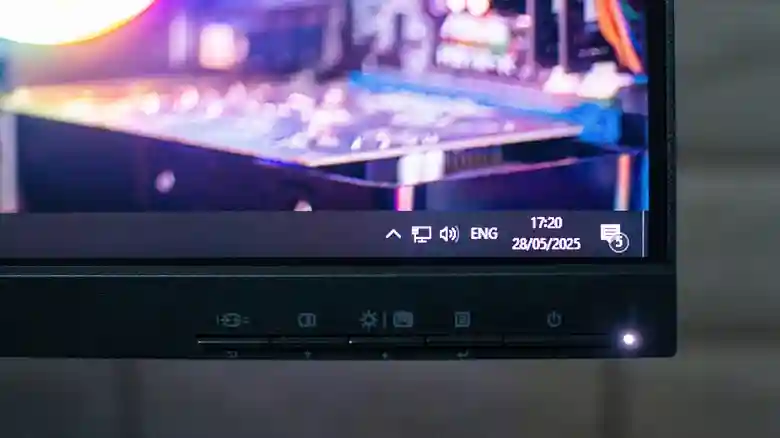
New monitors promise crisp visuals and vibrant colors, but factory settings often deliver washed-out images, blurry text, and motion artifacts that disappoint even budget buyers. These frustrations stem not from hardware defects, but misguided default configurations prioritizing demo appeal over accuracy. Modern displays pack sophisticated processing — HDR tone mapping, pixel overdrive circuits, dynamic color engines, and frame synchronization — intended as tools, not always-on defaults. Misapplied, they create unnatural pictures masquerading as “enhanced”; correctly managed, they unlock reference quality rivaling professional setups.
Simple menu navigation restores balance without calibration discs or hardware probes. Sequential adjustments targeting common culprits transform subpar experiences into enjoyable viewing, benefiting gamers, creators, and casual users alike. Understanding each setting’s purpose prevents “broken monitor” misconceptions, empowering confident ownership across LCD, OLED, and Mini-LED panels.
Disabling HDR for SDR Content
Factory HDR activation across all inputs creates washed-out SDR viewing — High Dynamic Range expects expanded metadata absent in standard content, resulting in crushed blacks, blown highlights, and gamma mismatch. Gaming monitors falsely advertise “HDR Ready” while lacking tone mapping chips; desktop use suffers desaturated palettes and elevated black floors. Toggle HDR manually per source via monitor OSD or OS display settings; Windows/macOS shortcut menus enable/disable instantly.
Power consumption rises 20-40% under constant HDR processing, accelerating thermal wear on budget panels. Reserve for verified HDR10/Dolby Vision sources; SDR optimization yields superior shadow detail and neutral whites essential for productivity and gaming.
Taming Pixel Overdrive Artifacts
Overdrive (Response Time/TraceFree) accelerates liquid crystal transitions, reducing motion blur in fast scenes. Aggressive settings (>Medium on most panels) induce inverse ghosting — bright/dark halos trailing objects due to voltage overshoot preventing clean settling. Gaming suffers edge ringing around characters; desktop scrolling reveals distracting trails behind cursors/text.
Test via UFO motion patterns (blurbusters.com); optimal setting renders propeller blades sharp without trailing coronas. OLED panels tolerate higher aggression thanks to pixel self-emission; VA LCDs demand conservative values preserving native contrast advantages. Balance speed against accuracy for stutter-free 144-240Hz operation.
Preserving Accurate Color Profiles
Windows Auto Color Management (ACM) and macOS automatic profile switching override calibrated ICC profiles, clamping wide-gamut displays to sRGB for “consistency.” Adobe RGB/DCI-P3 monitors lose 30-50% color volume; gradients band unnaturally while skin tones shift artificially. Gaming sees oversaturated neons; photo editing demands precise hue preservation impossible under automation.
Disable via Windows Display Settings > Advanced > Color Management > uncheck “Use Windows color management”; macOS System Settings > Displays > Color Profile > select calibrated custom profile. Factory “sRGB Mode” locks consumer panels accurately when Adobe RGB emulation distorts SDR content inappropriately.
Optimizing Resolution and Scaling
Non-native resolutions force interpolation, blurring sharp edges; Windows/macOS default to 100% scaling on 4K causing illegible text. Native pixel matching delivers razor UI; fractional scaling (125/150%) balances readability on 1440p/4K without rasterization artifacts. Multi-monitor mismatches compound issues — match effective PPI across displays via custom resolutions or GPU control panels.
ClearType (Windows) and font smoothing (macOS) eliminate subpixel fringing post-scaling tweaks. Gaming benefits from fullscreen native modes eliminating V-Sync overhead; productivity shines through crisp typography essential for prolonged reading/coding sessions.
Balancing VSync and Frame Synchronization
VSync eliminates tearing by buffering frames to monitor refresh but introduces stutter when FPS dips below 60/120/144Hz. Half-refresh judder (30FPS on 60Hz) destroys fluidity; uncapped tearing distracts during stable 200+FPS plateaus. Adaptive Sync (FreeSync/G-Sync) dynamically matches refresh to instantaneous FPS, eliminating both artifacts across 48-240Hz ranges.
Cap FPS 3-5 below monitor maximum via RivaTuner/RTSS prevents VRR range exits; Low Latency Mode minimizes input lag. Console players enable ALLM for automatic Game Mode switching; competitive esports demand 240-360Hz panels with unlocked FPS for minimal system latency.
Monitor mastery transforms disappointments into delights through targeted deactivation rather than blind acceptance. Disable erroneous HDR, moderate overdrive aggression, preserve color accuracy, match native scaling, and synchronize frames intelligently — your display graduates from “adequate” to “exceptional” instantly. Document optimal configurations for resets; revisit quarterly as firmware/panel aging alters behaviors. Invest 15 minutes; gain years of superior viewing across every application and content type.