

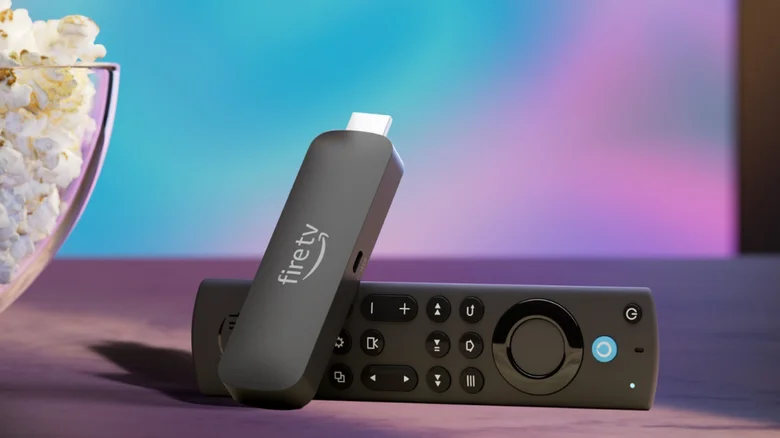
The Amazon Fire TV Stick stands as one of the most popular streaming devices on the market, praised for its affordability, vast content library, and straightforward setup. While millions enjoy it for watching their favorite shows and movies, many users remain unaware that this compact device harbors a suite of advanced capabilities beyond simple playback. These hidden features can significantly elevate your home entertainment experience, transforming the Fire TV Stick from a mere streaming portal into a versatile hub for smart home control, private listening, and efficient navigation. By exploring these lesser-known functions, you can unlock the full potential of your device, adding layers of convenience and customization that rival more expensive tech ecosystems.
View Your Ring Doorbell Live Feed from Your Fire TV Stick
Integrating your Ring doorbell with your Fire TV Stick creates a seamless home security experience. This functionality allows you to see who is at your door directly on your television screen, eliminating the need to reach for your phone or interrupt your viewing. The process leverages the Alexa ecosystem to bridge the two devices. Once linked, your Ring doorbell can send automatic announcements to your Fire TV Stick. When someone presses the doorbell or motion is detected, a picture-in-picture window will appear over your current content, providing immediate visual access to your doorstep. To establish this connection, you must first enable the Ring skill within the Alexa app on your smartphone. After logging into your Alexa account, navigate to the Skills & Games section, search for Ring, and enable the skill. You will be guided through linking your Ring account. Following this, you need to configure the announcement settings. Within the Alexa app, access your Ring device’s settings, locate the announcements section, and select your Fire TV Stick as an announcement device. You can choose to enable alerts for doorbell presses, motion events, or both. Once configured, you can view the live feed full-screen by long-pressing the home button on your remote when the notification appears. For manual viewing, simply hold the Alexa voice button on your remote and say, “Show me [your Ring doorbell name].” This integration not only enhances security but also adds a layer of convenience for greeting guests without leaving your couch.
Use Your Fire TV Stick Remote to Unlock Secret Shortcuts
The Fire TV Stick remote is designed for intuitive navigation, but it conceals several button combinations that activate powerful shortcuts. These keystrokes can save time and provide quick access to system functions that are otherwise buried in menus. One of the most practical shortcuts is the ability to reboot the device instantly. Instead of navigating through settings, you can simultaneously press and hold the center select button and the play/pause button for about five seconds. This forces a restart, which can resolve minor glitches or performance hiccups. For more significant issues, a factory reset shortcut is available. By holding down the back button and the right navigation button for approximately ten seconds, you will trigger a factory reset warning on screen. This should be used with caution, as it erases all personal data and settings. Another invaluable shortcut is holding the home button, which summons a quick settings menu. This menu provides immediate access to profile switching, ambient experience settings, sleep mode, screen mirroring options, and the main settings menu. Additional hidden combinations include long-pressing the back and fast forward buttons to activate a screen magnifier for better readability, and pressing the center and down buttons simultaneously followed by the menu button to access developer tools. Mastering these shortcuts transforms the remote into a more potent tool for managing your device efficiently.
Turn the Fire TV Stick’s Screen Saver into a Handy Smart Display
The Ambient Experience feature on the Fire TV Stick is far more than a simple screen saver that displays artwork. It can be customized to function as a dynamic smart display, presenting useful information at a glance when the TV is not actively streaming content. By adding widgets, you can view calendar events, current weather conditions, sticky notes, music playback controls, and even status updates from compatible smart home devices. This turns your television into a centralized information hub during downtime. Configuring these widgets is straightforward. Initiate the process by long-pressing the home button on your remote and selecting Ambient Experience from the quick settings. Press the menu button to access additional options and choose to add widgets. You can browse through available widgets and select those you wish to display. If the widgets do not appear immediately when the screen saver activates, you may need to adjust the ambient preferences. Within the Ambient Experience settings, navigate to the Widgets at Start option and set it to Show. Once enabled, you can press the up button on your remote to expand the widget panel and view all active modules. This feature effectively repurposes your TV screen, providing constant value even when you are not watching traditional content.
Pair Bluetooth Headphones with Your Fire TV Stick
Private listening is a valuable feature for many households, and the Fire TV Stick supports wireless audio output through Bluetooth headphones. This capability is perfect for late-night viewing sessions, ensuring that loud audio does not disturb others in the room. It also provides a more immersive personal experience without requiring additional hardware. The pairing process is simple and mirrors connecting headphones to other Bluetooth devices. First, ensure your Bluetooth headphones are in pairing mode, making them discoverable to other devices. On your Fire TV Stick, navigate to the settings menu from the home screen. Select Controllers & Bluetooth Devices, and then choose Other Bluetooth Devices. Select Add Bluetooth Devices, and the Fire TV Stick will scan for available equipment. When your headphones appear in the list, select them to establish the connection. A confirmation message will appear on the screen once paired successfully. From that point, all audio from the Fire TV Stick will route through your headphones, allowing you to enjoy content at any volume without external noise. This feature underscores the device’s flexibility in accommodating various viewing preferences and living situations.
Connect Your Fire TV Stick to a Keyboard, Mouse, or Trackpad
Text input using a remote control can be tedious, especially when searching for lengthy titles or browsing the web. The Fire TV Stick alleviates this frustration by supporting external input devices such as USB or Bluetooth keyboards, mice, and trackpads. This connectivity transforms navigation and text entry, making it faster and more precise. It is particularly beneficial for using web browsers or apps that require extensive typing. For wired USB peripherals or those using a wireless dongle, you will need an On-The-Go (OTG) cable adapter. This cable typically has a microUSB connector for the Fire TV Stick, a microUSB port for the power cable, and a standard USB port for the keyboard or mouse dongle. Once connected, the input device should be recognized automatically. For Bluetooth keyboards, mice, or trackpads, the pairing process is similar to that of headphones. Enable pairing mode on your peripheral, then on the Fire TV Stick, go to Settings, select Controllers & Bluetooth Devices, choose Other Bluetooth Devices, and click Add Bluetooth Devices. Select your device from the list to pair it. After connection, you can use the keyboard for typing and the mouse or trackpad for cursor navigation, greatly enhancing productivity and ease of use on the platform. Exploring these hidden features reveals the true depth of the Amazon Fire TV Stick’s capabilities. From enhancing home security with Ring integration to creating a personalized smart display, enabling private audio listening, and streamlining navigation with external peripherals, these tricks empower users to tailor their experience. By venturing beyond basic streaming, you can transform this affordable device into a central component of a more connected and convenient digital home.


