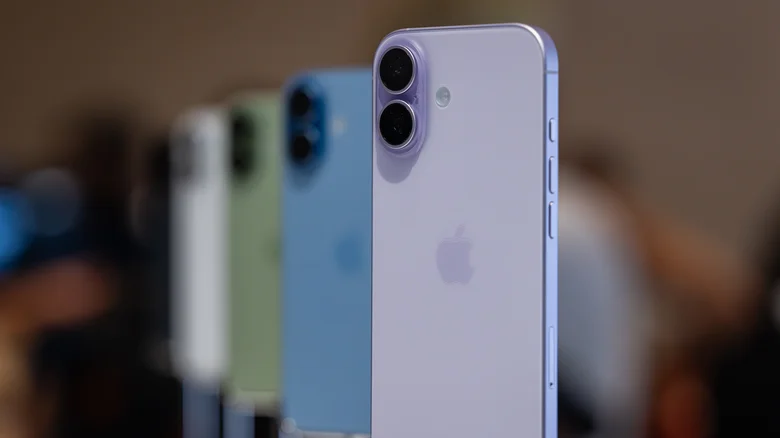
LiDAR (Light Detection and Ranging) transforms Pro iPhones and iPads into portable 3D mapping tools, measuring distances with laser precision for augmented reality, measurements, and environmental scanning. This compact sensor—visible as a black dot near rear cameras—enhances autofocus in low light, powers immersive AR experiences, and enables accurate room modeling. Available only on iPhone 12 Pro onward and select iPad Pros, LiDAR elevates photography, gaming, and accessibility beyond standard capabilities.
From instant height checks to professional floor plans, native and third-party apps harness LiDAR for practical magic. Casual users gain ruler-free measurements; pros create exportable 3D models. Understanding activation unlocks hidden productivity across Measure, AR games, and scanning apps.
Compatible Devices with Built-in LiDAR
LiDAR debuted on premium Apple hardware for computational photography and spatial awareness:
iPhone 12 Pro, 12 Pro Max
iPhone 13 Pro, 13 Pro Max
iPhone 14 Pro, 14 Pro Max
iPhone 15 Pro, 15 Pro Max
iPhone 16 Pro, 16 Pro Max
iPad Pro 11-inch (2nd gen+), 12.9-inch (4th gen+)
Base models lack this sensor, relying on software depth estimation instead.
Mastering Measure App with LiDAR Precision
Apple’s native Measure app gains superpowers via LiDAR: auto-snapping edges, elevation data, person height detection, and session history.
Steps for object measurement:
– Open Measure from Control Center or Spotlight.
– Scan scene until white circle with center dot appears.
– Position dot on object edge; yellow guide line auto-snaps.
– Tap + to set start point, drag to endpoint, tap + again.
– View details: length, angle, elevation, your distance.
– Long-press endpoints to adjust; copy/export values.
For height:
– Frame person head-to-toe; measurement auto-appears.
– Tap shutter for screenshot with overlaid height.
History: Top-left icon copies/clears session data.
Third-Party Apps Supercharged by LiDAR
LiDAR unlocks pro-level scanning in specialized apps:
**Room Planning**: magicplan and IKEA Place generate 2D floor plans/3D models by sweeping rooms. Export to SketchUp/AutoCAD; virtually furnish spaces.
**3D Object Scanning**: Polycam, 3D Scanner App capture detailed meshes for printing/art—circle subjects slowly.
**AR Gaming**: RC Club, AR Racing simulators anchor virtual cars to real tables/floors with physics-aware collisions.
**Accessibility**: Super Lidar, Obstacle Detector emit audio/haptic alerts for low-vision navigation, measuring obstacle distances in real-time.
Download from App Store; LiDAR devices auto-activate enhanced modes.
LiDAR vs Standard Camera Depth Comparison
| Feature | LiDAR (Pro models) | Standard Camera |
|---|---|---|
| Low-Light Accuracy | Laser-precise | Software-estimated |
| Max Range | 5 meters | ~2 meters |
| AR Anchoring | Stable, physics-aware | Drifts over time |
| Height Measurement | Auto head-to-toe | Manual endpoints |
| 3D Export Quality | Pro meshes | Basic point clouds |
Advanced LiDAR Tips for Power Users
Stable surfaces yield best scans; avoid reflective/glass materials.
Combine with TrueDepth front camera for full-room captures.
Export OBJ/GLB files for Blender/Unity AR projects.
Developer mode: ARKit apps leverage LiDAR for occlusion (virtual objects behind real items).
Steps to Start LiDAR Scanning Today
– Confirm Pro model: Settings > General > About > Model.
– Install Measure; grant camera permission.
– Download magicplan/Polycam for specialized scans.
– Practice in well-lit rooms; sweep slowly, 30-50cm from surfaces.
– Review exports in Files app; share via AirDrop/Messages.
LiDAR bridges phone and pro tools, turning pocket devices into spatial computers. From DIY renovations to accessible navigation, this overlooked sensor redefines iPhone utility for creators, gamers, and everyday measurers alike.