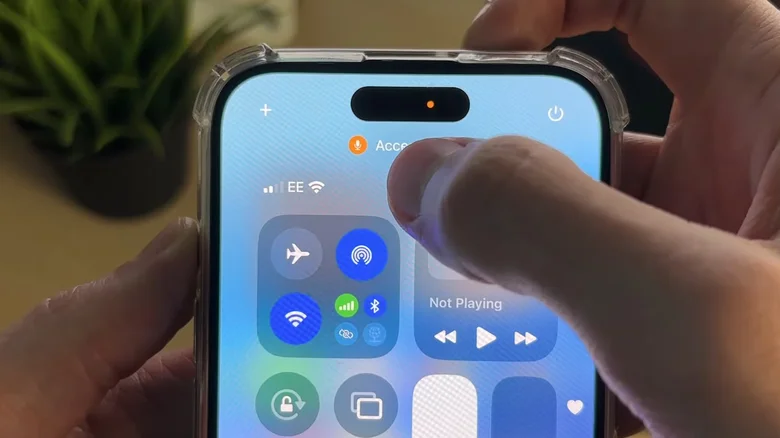
iOS updates frequently introduce subtle visual changes that enhance functionality and privacy, with iOS 18.4 adding a black dot indicator alongside the familiar orange and green dots. These status icons appear at the top of your iPhone screen to signal when apps access sensitive hardware like the camera or microphone. The black background makes them more prominent against Dynamic Island, ensuring you never miss when privacy features activate.
Originally launched in iOS 14, these indicators empower users with transparency over app behavior. Green signals camera usage, orange indicates microphone access, and the new black dot provides visual separation for better visibility on modern notch designs. Understanding and managing them maintains control without compromising security.
Understanding iPhone Privacy Indicators
Each color serves a specific purpose to protect your data:
– **Green Dot**: Active camera usage by any app, including front or rear cameras.
– **Orange Dot**: Microphone activation for calls, recordings, or voice features.
– **Black Dot (iOS 18.4+)**: Enhanced background styling for the above indicators, improving contrast on light interfaces.
These persist until the app closes its session. Background processes like Siri listening or video calls trigger them automatically—no user action needed.
How to Identify Which App Triggers the Dots
Suspicious indicators warrant investigation to rule out unauthorized access:
Pull down from top-right corner to open Control Center.
Active camera/microphone sections display the exact app name and usage type.
Recent Activity logs show permission history for deeper review.
If dots appear without Control Center confirmation, force-quit apps via App Switcher or restart your iPhone.
Steps to Manage Camera and Microphone Permissions
Apple prevents global disabling of indicators for security, but granular controls eliminate unwanted activations:
– Open Settings app from home screen.
– Scroll to Privacy & Security section.
– Tap Camera, then review app list below.
– Toggle off permissions for apps not needing access.
– Repeat for Microphone permissions.
Revoked apps prompt for re-authorization on next request. Safari websites inherit these browser-level controls.
Preventing Unauthorized Access and Malware
Privacy dots serve as your first line of defense against malicious apps or juice-jacking:
Avoid public USB ports; use wall chargers or power banks exclusively.
USB data blockers physically prevent data transfer during charging.
Download apps only from App Store; enable automatic iOS updates.
Review Location Services under Privacy settings weekly.
Android equivalents use similar camera/mic icons, reinforcing cross-platform vigilance.
Privacy Indicators Comparison: iOS vs Android
| Feature | iPhone (iOS 18.4) | Android |
|---|---|---|
| Camera Indicator | Green dot + black bg | Green dot top-right |
| Mic Indicator | Orange dot + black bg | Orange dot top-right |
| Check Active App | Control Center | Quick Settings tile |
| Disable Globally | No (security) | No (security) |
| Granular Control | Settings > Privacy | Settings > Privacy |
Advanced Privacy Optimization Tips
Lock screen microphone access via Settings > Face ID & Passcode > Allow Access When Locked.
Enable App Privacy Report in Settings > Privacy & Security to audit weekly usage.
Use Guided Access for single-app sessions blocking hardware access.
Monitor Battery usage—high drain often correlates with rogue mic/camera activity.
iOS 18.4’s refinements underscore Apple’s privacy commitment. Indicators evolve from subtle notifications to prominent safeguards, ensuring transparency without user intervention. Regular permission audits combined with safe charging habits eliminate 99% of risks while preserving seamless functionality.