

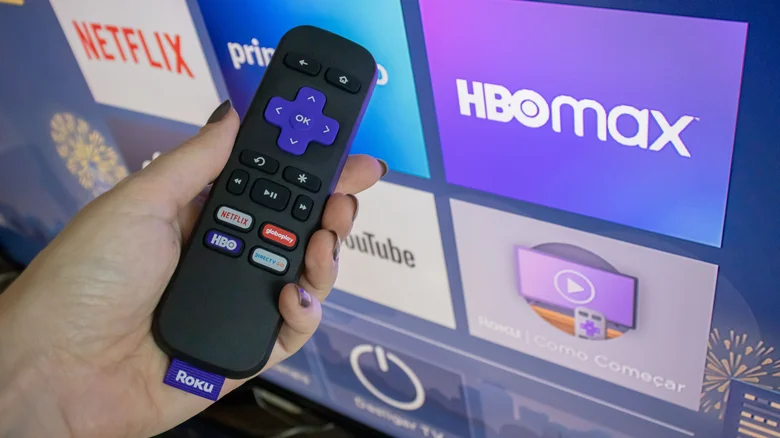
Roku has redefined modern streaming by offering affordable yet powerful devices that bring all your favorite entertainment under one roof. Whether you own a Roku Streaming Stick, Roku Ultra, or a Roku-powered smart TV, every Roku device is designed to provide quick access to top streaming platforms like Netflix, Hulu, Disney+, and Prime Video, along with thousands of free channels.
While every Roku product comes with a physical remote, there’s a powerful alternative you might not be using enough — the Roku mobile app. Available for both Android and iOS devices, this free app extends your streaming control and brings several unique features that your handheld remote doesn’t have.
Using Your Roku Remote
Roku’s physical remotes vary slightly depending on the model. Some include basic navigation buttons, while premium ones feature voice control, shortcut keys, and power and volume buttons that can sync with your TV, even if it isn’t Roku-branded.
What makes Roku remotes truly convenient is their universal compatibility. Once paired, they allow full control over your Roku device, offering smooth navigation through menus, volume adjustments, and playback control. However, a smartphone can now do all this — and far more — through the Roku mobile app.
Introducing the Roku Mobile App
The Roku mobile app turns your smartphone into a feature-rich streaming control hub. Once downloaded from the Play Store or App Store, you’ll need to sign in to your Roku account. Upon logging in, the Home panel appears, giving you access to categories like **Continue Watching**, **Trending Now**, and **Save List**.
To start controlling your streaming device, tap the **Remote** icon at the bottom of the screen, choose your Roku device from the dropdown menu, and begin navigating. The interface replicates a traditional remote but adds helpful features like voice search, keyboard input, and channel shortcuts.
Top Features of the Roku Mobile App
Once you get familiar with the app, you’ll discover a wide variety of options that enhance your streaming experience:
– **Private Listening Mode** – Plug in wired headphones or connect Bluetooth earbuds to your smartphone, and enjoy your favorite shows privately without disturbing others.
– **Voice Search and Commands** – Use the built-in Roku voice feature to search for content simply by speaking into your phone’s microphone.
– **One-Tap Navigation** – Quickly launch channels, search movies, or adjust settings with intuitive on-screen buttons.
– **Personalized Home Screen** – Access your most-used apps instantly from the Home panel or the ‘My Roku’ menu.
How to Set Up the Roku Mobile App
Follow these steps to pair and set up your Roku mobile app for effortless control:
– Download the Roku mobile app from the Google Play Store or Apple App Store.
– Sign in using your Roku account details.
– Connect your phone and Roku device to the same Wi‑Fi network.
– Tap the **Devices** icon and select your Roku hardware.
– Tap **Remote** to begin controlling your TV or streaming stick.
Once connected, your smartphone becomes an all-in-one command center — no need to find your physical remote again.
Roku Remote vs. Roku Mobile App
Below is a simple comparison highlighting the key differences between the traditional Roku remote and the Roku mobile app:
| Feature | Roku Remote | Roku Mobile App |
|---|---|---|
| Playback Controls | Yes | Yes |
| Private Listening | No | Yes |
| Voice Search | Available on specific models | Available on all supported phones |
| Channel Management | Limited | Full access via app dashboard |
| Keyboard Input | No | Yes, using your phone’s keyboard |
Maximizing Your Roku Experience
The Roku mobile app doesn’t just replace your remote — it enhances your entire experience. By swiping up on the **My Roku** menu, you can view the **Open Recent Apps** list, letting you launch previously used streaming services with a single tap. The **Continue Watching** section automatically opens the correct app and resumes your favorite shows without hassle.
You can also visit the **Account** section to adjust hardware settings, manage your subscription, or update your Roku payment information directly from your phone.
Why Choose a Roku Device?
If you’re planning to upgrade your entertainment setup, Roku devices remain one of the best options available today. They combine affordability with excellent performance, intuitive navigation, and continuous software updates. The addition of the Roku mobile app makes your experience even more flexible — offering the best of both worlds: wireless convenience and complete control.
With the right combination of Roku hardware and the mobile app, streaming becomes more intuitive, accessible, and adaptable to your lifestyle. Whether you’re watching TV late at night, switching between devices, or searching hands-free with voice commands, Roku ensures your favorite content is never more than a tap away.


