

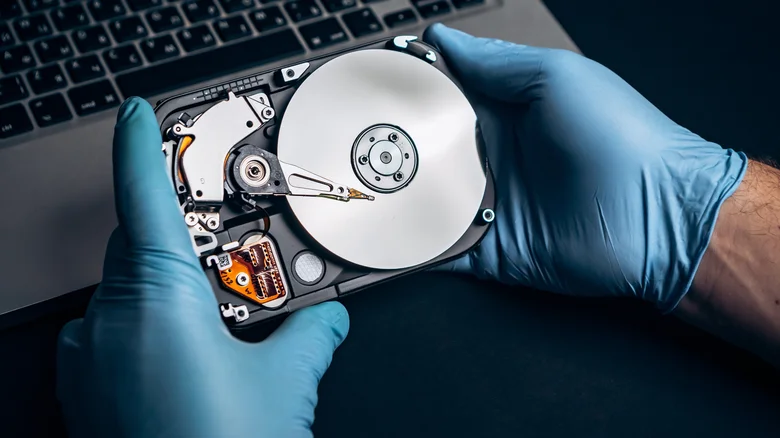
Slow boot times, lagging file access, and endless game loading screens signal storage bottlenecks dragging down your entire PC. Traditional HDDs fragment over time while aging SSDs accumulate junk and throttle under heat—both robbing system responsiveness. Simple maintenance revives performance, extends drive life, and delays expensive upgrades, turning sluggish machines into snappy workhorses without opening the case.
These tweaks apply universally across Windows, HDDs, and SSDs, blending built-in tools with targeted optimizations. Regular application yields noticeable gains in file transfers, app launches, and overall fluidity, often rivaling hardware swaps for casual users.
Update Firmware and Drivers First
Outdated firmware hides performance fixes for read/write speeds, power efficiency, and compatibility glitches. Manufacturers release updates addressing specific bottlenecks like stuttering NVMe or inefficient caching.
Driver refreshes strengthen OS-hardware communication, unlocking full bandwidth. Neglected drivers misread drive capabilities, capping speeds artificially.
Launch Device Manager (Windows key + X > Device Manager), right-click your drive under Disk Drives, select Update Driver. Check manufacturer sites (Samsung Magician, Crucial Storage Executive) for firmware tools. Reboot post-install—expect 10-20% speed bumps in benchmarks.
Run Disk Cleanup and Defragmentation (HDD Only)
Temporary files, logs, and install caches bloat drives, forcing constant head seeking on HDDs. Windows Disk Cleanup wipes gigabytes instantly: search “Disk Cleanup,” select drive, check categories, OK.
Defragmentation reorganizes scattered HDD fragments for sequential access. Search “Defragment and Optimize Drives,” analyze C: drive, Optimize if fragmented >10%. Schedule weekly.
SSDs skip defrag—TRIM handles fragmentation via garbage collection. Enable TRIM: Command Prompt (admin) > “fsutil behavior query DisableDeleteNotify” (0=enabled). Avoid defrag on SSDs; it accelerates wear.
Prevent Drive Idling and Power Throttling
Sleep modes clock down drives, causing wake-up lag. Disable via Power Options: Control Panel > Power Options > Change plan settings > Change advanced > Hard disk > Turn off after > 0 minutes (Never).
For SSDs, nix Aggressive Link State Power Management: same menu > PCI Express > Link State Power Management > Off. Set longer burst ignore times to maintain peak speeds during brief idles.
Improve Cooling to Stop Thermal Throttling
Heat triggers automatic slowdowns—NVMe SSDs cap at 70°C, HDDs suffer mechanical stress above 50°C. Add heatsinks to M.2 drives ($5-10), ensure case fans blow over bays.
Monitor temps: HWMonitor or CrystalDiskInfo. Clean dust monthly with compressed air. Optimal airflow adds 15-30% sustained speeds, prevents premature failure.
Use Dedicated SSD Optimizer Tools
Brand tools like Samsung Magician run TRIM, over-provisioning, and RAPID caching (RAM-accelerated I/O). Enable Performance Optimization for 20-50% read gains.
Third-party like Auslogics SSD Optimizer automates garbage collection, reduces writes, schedules maintenance. Avoid generic “PC cleaners”—they fragment more than help.
Steps for Complete Drive Maintenance Routine
– Update firmware/drivers via manufacturer software.
– Run Disk Cleanup, then Defrag (HDD) or TRIM check (SSD).
– Adjust power settings to disable idling/throttling.
– Monitor/install cooling; clean dust buildup.
– Launch SSD optimizer weekly; benchmark speeds pre/post (CrystalDiskMark).
HDD vs SSD Speed Tips Comparison
| Optimization | HDD Benefit | SSD Benefit |
|---|---|---|
| Defragmentation | High (reduces seek time) | None (harms wear) |
| TRIM | Not applicable | High (frees blocks) |
| Firmware Update | Medium | High (NVMe fixes) |
| Power Tweaks | High (spin-up lag) | Medium (link power) |
| Cooling | High (mechanical) | High (throttling) |
Long-Term Performance Monitoring
Benchmark quarterly with CrystalDiskMark—track sequential/random reads. SMART stats via CrystalDiskInfo flag health drops early. Low free space (<20%) mimics slowness; maintain headroom. Combine with RAM upgrades or OS reinstalls for compounded gains. These habits extend HDDs to 5+ years, SSDs to TBW limits (300-1200TB writes). Revitalized storage transforms "unusable" rigs into daily drivers, postponing full rebuilds indefinitely.


