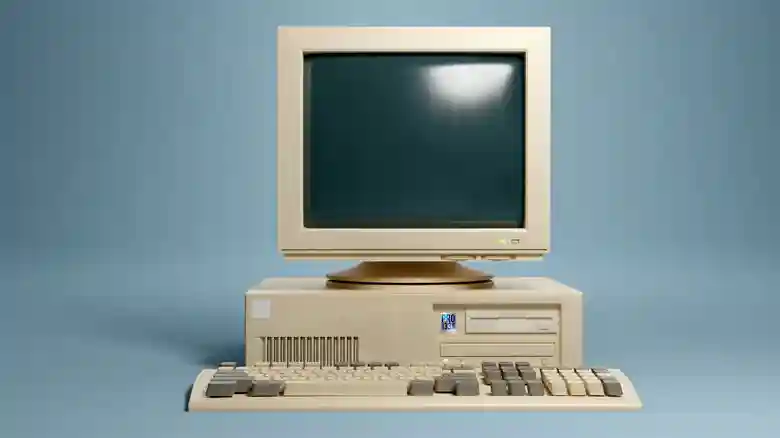
Personal computers eventually show their age, but amid rising costs from tariffs and AI-driven hardware demands, extending their life proves more crucial than ever. Rather than rushing to replace that sluggish Windows 11 machine, simple optimizations can restore snappy performance without expense. While adjusting built-in settings yields quick gains, free third-party tools target deeper inefficiencies like bloatware, clutter, and resource hogs that silently degrade speed. These accessible applications, praised by users and experts alike, require no technical expertise and many integrate seamlessly with Windows features.
From startup control to disk visualization and lightweight browsing, this lineup transforms aging PCs into capable performers. Download freely online or leverage pre-installed utilities for immediate impact, countering economic pressures to upgrade prematurely.
Manage Startup Apps via Built-in Settings
Excessive background apps at boot prolong startups and consume RAM relentlessly. Windows 11’s native Startup manager offers effortless control: right-click Start, navigate to Settings > Apps > Startup, and disable non-essentials like Microsoft Teams, Zoom, Xbox services, or iTunesHelper. Retain only daily necessities; launch others manually as needed. This foundational tweak dramatically cuts boot times, freeing resources for foreground tasks without external software.
CrapFixer: One-Click Bloatware Eliminator
Despite its cheeky name, CrapFixer delivers serious results as a free, open-source optimizer tailored for Windows 11. Run as administrator, select Analyze, and review checkboxes for telemetry cuts, ad blocks, Copilot disabling, disk cleanups, and Game DVR shutdowns. Red-highlighted priorities guide beginners; detailed popups explain impacts. Hit Run Fixer for automated application with full logging for easy reversals. Users report noticeably faster responsiveness and reduced clutter across aging hardware.
With dozens of modular tweaks, it mimics expert customizations safely, including Edge optimizations and shutdown accelerations, breathing new life into overburdened systems effortlessly.
SpaceSniffer: Visual Disk Space Explorer
Full drives cripple SSD performance as controllers hunt desperately for write space. SpaceSniffer revolutionizes cleanup with intuitive treemap graphics: launch portable scans to reveal folder sizes as proportional blocks — massive squares expose video hoards or temp file dumps instantly. Interactive navigation, size filters, age sorting, and real-time deletions update visuals on-the-fly. Custom colors and layouts enhance analysis across multi-drive setups.
Perfect for pinpointing forgotten downloads or game installs, it bypasses tedious folder dives, restoring speed through targeted deletions without guesswork.
Everything: Instant Universal File Search
Windows Search falters on large drives, indexing slowly and selectively while spiking CPU. Everything from Voidtools indexes every file and folder in seconds for lightning results, even on partial names or obscure locations. Minimal resource footprint ensures it accelerates workflows without drag, outperforming native tools for documents, executables, or scattered media. Taskbar integration and filters enhance daily use.
Transform file hunting from frustration to fluency, especially vital on cluttered legacy systems where native search grinds to a halt.
Midori: Featherweight Privacy Browser
Chrome and Edge bloat overwhelm low-RAM relics; Midori counters as an open-source speed demon consuming 60% less memory for triple-faster page loads. Privacy-first design blocks trackers, skips data sales, and employs robust encryption across platforms. Quick startups and low footprints revive web access on ancient Celeron or Pentium rigs without compromise.
Ideal for email, research, or casual browsing, it proves modern internet thrives sans resource hogs, extending PC viability economically.
Synergistic Optimization Strategy
Layer these tools for maximum revival: prune startups first, debloat with CrapFixer, reclaim space via SpaceSniffer, search smarter with Everything, and browse lightly through Midori. Regular maintenance combats creeping bloat; create System Restore points beforehand for safety. These free powerhouses demonstrate older hardware’s untapped potential, defying premature obsolescence amid soaring new-PC prices.
Revived machines handle daily tasks admirably, buying time until budgets align for upgrades. Start simple — your next boot could feel brand new.