OLED displays deliver superior contrast and perfect blacks by allowing individual pixels to emit light independently, eliminating backlights found in LCD panels. This self-emissive technology creates stunning visuals but uses organic materials that degrade over time, potentially causing burn-in where static images leave permanent ghosting. While manufacturers continue improving durability, proactive settings adjustments significantly extend OLED lifespan for both TVs and PC monitors.
Burn-in occurs when specific pixels remain active longer than others, accelerating wear in those areas. TVs face risks from static channel logos during news broadcasts or black letterbox bars in movies, while monitors encounter persistent taskbars, wallpapers, or game HUD elements. Modern OLEDs include pixel refresh cycles and mitigation features, but user habits play a crucial role in prevention.
Optimize TV Settings for Burn-In Prevention
TVs experience less burn-in than monitors due to dynamic content filling the screen during movies and games. However, static elements like news tickers, sports scores, or racing game speedometers pose risks during extended viewing sessions. Avoid prolonged display of letterboxed content where black bars remain constantly visible.
Maintain constant power connection to enable automatic pixel refresh functions that operate during standby mode. These cycles subtly shift pixels to even out wear patterns. Key TV adjustments include:
- Reduce peak brightness settings for daily use
- Enable screen saver or logo dimming features
- Activate automatic pixel refresher cycles
- Adjust panel refresh interval to daily or weekly
Hide Taskbars and Docks on PC Monitors
Persistent interface elements like Windows taskbars or macOS Docks create prime burn-in candidates on OLED monitors. These bottom-screen bars display identical icons and content for hours, accelerating pixel degradation in that specific area.
To hide Windows 11 taskbar:
- Right-click taskbar and select Taskbar settings
- Expand Taskbar behaviors
- Check Automatically hide the taskbar
To auto-hide macOS Dock:
- Click Apple menu > System Settings
- Select Desktop & Dock
- Enable Automatically hide and show the Dock
Dynamic Wallpapers Prevent Static Burn-In
Static desktop backgrounds remain visible between applications, contributing to uneven pixel wear. Rotating wallpaper slideshows ensure no single image persists long enough to cause damage, providing natural pixel exercise across the entire display.
Windows slideshow setup:
- Right-click desktop > Personalize > Background
- Select Slideshow under Personalize your background
- Choose folder and set rotation interval (10-60 minutes recommended)
macOS wallpaper rotation:
- System Settings > Wallpaper
- Click Add Folder or select photo library
- Enable shuffle with 30-minute to 1-hour intervals
Brightness Management and Dark Mode Essential
OLED pixels degrade fastest at maximum brightness, making moderate settings crucial for longevity. Reducing screen luminance by 20-30% during normal use dramatically slows wear while maintaining excellent picture quality. Dark mode further protects displays by minimizing active pixels.
Enable system-wide dark themes:
Windows 11: Desktop right-click > Personalize > Colors > Select Dark
macOS: Apple menu > System Settings > Appearance > Choose Dark
Gaming and Productivity Burn-In Prevention
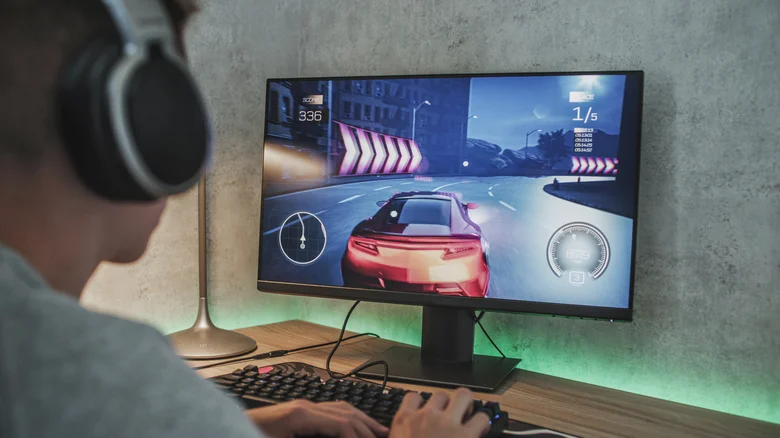
Gamers face unique challenges from static HUD elements like minimaps, health bars, and weapon counters. Rotate between games featuring different interface layouts and take periodic screen breaks. Productivity users should minimize always-visible toolbars in applications like web browsers or video editors.
Additional monitor protection strategies include:
- Nighttime auto-dimming schedules
- Application window positioning variety
- Regular full-screen content sessions
- Pixel orbiter screen saver activation
Combining these practices creates robust burn-in defense, allowing users to enjoy OLED’s visual excellence for years without permanent image retention issues.